

This guide shows you how to deploy and configure a performance-optimized SUSE Linux Enterprise Server (SLES) high-availability (HA) cluster for an SAP HANA scale-up system on Google Cloud.
This guide uses the Terraform configuration provided by Google Cloud to deploy the Google Cloud resources for running the SAP HANA scale-up HA system such that the system satisfies SAP supportability requirements and conforms to best practices.
This guide is intended for advanced SAP HANA users who are familiar with Linux HA configurations for SAP HANA.
The system that this guide deploys
By following this guide, you deploy an SAP HANA scale-up system in an HA cluster on SLES on Google Cloud that includes the following resources:
- A primary and secondary site, each containing an instance of SAP HANA, hosted on a Compute Engine instance. These sites are deployed in different zones, but in the same region.
- SAP-certified SSD-based Persistent Disk or Hyperdisk volumes for the SAP HANA data and log volumes, which are attached to the compute instances.
- Synchronous replication between the primary and secondary sites.
- A Pacemaker-managed HA cluster that includes the following:
- The SUSE high-availability setup.
- A fencing mechanism. You can choose to implement SBD-based fencing in the cluster.
- If you opt to use SLES for SAP 15 SP6 or later, then the cluster uses the SUSE
SAPHanaSR-angiresource agent package. If you opt to use an earlier version of SLES, then the cluster uses the SUSESAPHanaSRresource agent package.
- A virtual IP (VIP) that uses a Layer 4 TCP internal load balancer
implementation that includes the following:
- An internal passthrough Network Load Balancer to reroute traffic in the HA cluster in the event of a failure.
- A reservation of the IP address that you select for the VIP.
- Two Compute Engine instance groups.
- A Compute Engine health check.
This guide does not include information about deploying SAP NetWeaver.
Architecture diagram
The following tabs show the architecture diagram of the system that this guide helps you deploy:
For fence_gce based fencing
The following architecture diagram shows the resources deployed in an SAP HANA
scale-up HA system when you opt to use the fence_gce agent based fencing
mechanism:

For SBD based fencing
The following architecture diagram shows the resources deployed in an SAP HANA scale-up HA system when you opt to use SBD-based fencing:
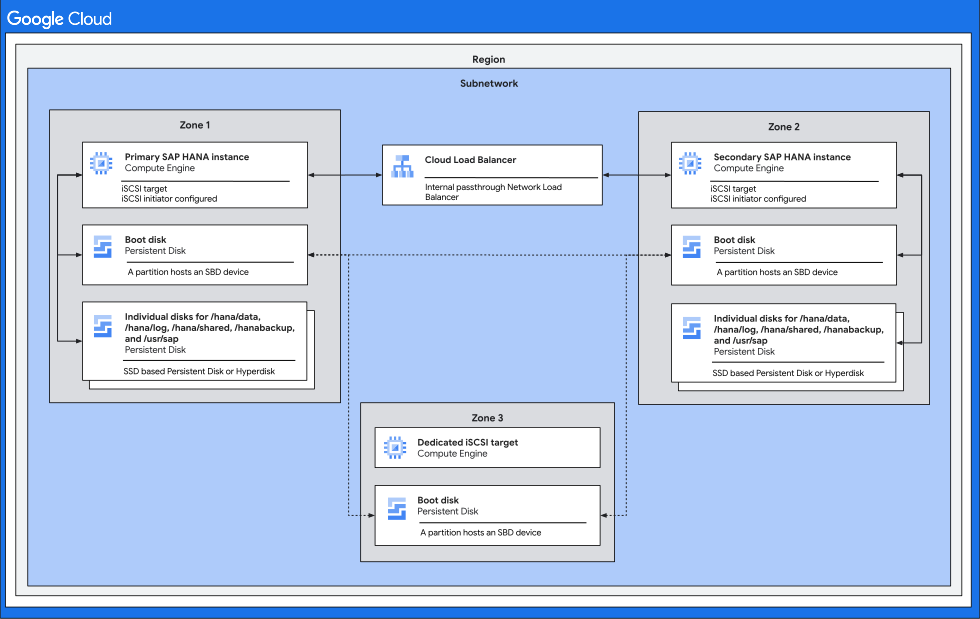
Before you begin
Before you deploy the SAP HANA scale-up HA system on SLES, make sure that the following prerequisites are met:
- You have read the SAP HANA planning guide and the SAP HANA high-availability planning guide.
- You or your organization has a Google Cloud account and have created a Google Cloud project for the SAP HANA deployment. For information about how to create Google Cloud accounts and projects, see Set up your Google account.
If you require your SAP workload to run in compliance with data residency, access control, support personnel, or regulatory requirements, then you must create the required Assured Workloads folder. For more information, see Compliance and sovereign controls for SAP on Google Cloud.
If OS login is enabled in your project metadata, you need to disable OS login temporarily until your deployment is complete. For deployment purposes, this procedure configures SSH keys in instance metadata. When OS login is enabled, metadata-based SSH key configurations are disabled, and this deployment fails. After deployment is complete, you can enable OS login again.
For more information, see:
If you are using VPC internal DNS, then the value of the
vmDnsSettingvariable in your project metadata must either beGlobalOnlyorZonalPreferredto enable the resolution of the node names across zones. The default setting ofvmDnsSettingisZonalOnly. For more information, see:
Setting up your Google account
A Google account is required to work with Google Cloud.
- Sign up for a Google account if you don't already have one.
- (Optional) If you require your SAP workload to run in compliance with data residency, access control, support personnel, or regulatory requirements, then you must create the required Assured Workloads folder. For more information, see Compliance and sovereign controls for SAP on Google Cloud.
- Log in to the Google Cloud console, and create a new project.
- Enable your billing account.
- Configure SSH keys so that you are able to use them to SSH into your Compute Engine VM instances. Use the Google Cloud CLI to create a new SSH key.
- Use the gcloud CLI or Google Cloud console to add the SSH keys to your project metadata. This allows you to access any Compute Engine VM instance created within this project, except for instances that explicitly disable project-wide SSH keys.
Creating a network
For security purposes, create a new network. You can control who has access by adding firewall rules or by using another access control method.
If your project has a default VPC network, then don't use it. Instead, create your own VPC network so that the only firewall rules in effect are those that you create explicitly.
During deployment, Compute Engine instances typically require access to the internet to download Google Cloud's Agent for SAP. If you are using one of the SAP-certified Linux images that are available from Google Cloud, then the compute instance also requires access to the internet in order to register the license and to access OS vendor repositories. A configuration with a NAT gateway and with VM network tags supports this access, even if the target compute instances don't have external IPs.
To set up networking:
Console
- In the Google Cloud console, go to the VPC networks page.
- Click Create VPC network.
- Enter a Name for the network.
The name must adhere to the naming convention. VPC networks use the Compute Engine naming convention.
- For Subnet creation mode, choose Custom.
- In the New subnet section, specify the following configuration parameters for a
subnet:
- Enter a Name for the subnet.
- For Region, select the Compute Engine region where you want to create the subnet.
- For IP stack type, select IPv4 (single-stack) and then enter an IP
address range in the
CIDR format,
such as
10.1.0.0/24.This is the primary IPv4 range for the subnet. If you plan to add more than one subnet, then assign non-overlapping CIDR IP ranges for each subnetwork in the network. Note that each subnetwork and its internal IP ranges are mapped to a single region.
- Click Done.
- To add more subnets, click Add subnet and repeat the preceding steps. You can add more subnets to the network after you have created the network.
- Click Create.
gcloud
- Go to Cloud Shell.
- To create a new network in the custom subnetworks mode, run:
gcloud compute networks create NETWORK_NAME --subnet-mode custom
Replace
NETWORK_NAMEwith the name of the new network. The name must adhere to the naming convention. VPC networks use the Compute Engine naming convention.Specify
--subnet-mode customto avoid using the default auto mode, which automatically creates a subnet in each Compute Engine region. For more information, see Subnet creation mode. - Create a subnetwork, and specify the region and IP range:
gcloud compute networks subnets create SUBNETWORK_NAME \
    --network NETWORK_NAME --region REGION --range RANGE
Replace the following:
SUBNETWORK_NAME: the name of the new subnetworkNETWORK_NAME: the name of the network you created in the previous stepREGION: the region where you want the subnetworkRANGE: the IP address range, specified in CIDR format, such as10.1.0.0/24If you plan to add more than one subnetwork, assign non-overlapping CIDR IP ranges for each subnetwork in the network. Note that each subnetwork and its internal IP ranges are mapped to a single region.
- Optionally, repeat the previous step and add additional subnetworks.
Setting up a NAT gateway
If you need to create one or more VMs without public IP addresses, then you need to use network address translation (NAT) to enable the VMs to access the internet. Use Cloud NAT, a Google Cloud distributed, software-defined managed service that lets VMs send outbound packets to the internet and receive any corresponding established inbound response packets. Alternatively, you can set up a separate VM as a NAT gateway.
To create a Cloud NAT instance for your project, see Using Cloud NAT.
After you configure Cloud NAT for your project, your VM instances can securely access the internet without a public IP address.
Adding firewall rules
By default, an implied firewall rule blocks incoming connections from outside your Virtual Private Cloud (VPC) network. To allow incoming connections, set up a firewall rule for your VM. After an incoming connection is established with a VM, traffic is permitted in both directions over that connection.
You can also create a firewall rule to allow external access to specified ports,
or to restrict access between VMs on the same network. If the default
VPC network type is used, some additional default rules also
apply, such as the default-allow-internal rule, which allows connectivity
between VMs on the same network on all ports.
Depending on the IT policy that is applicable to your environment, you might need to isolate or otherwise restrict connectivity to your database host, which you can do by creating firewall rules.
Depending on your scenario, you can create firewall rules to allow access for:
- The default SAP ports that are listed in TCP/IP of All SAP Products.
- Connections from your computer or your corporate network environment to your Compute Engine instance. If you are unsure of what IP address to use, talk to your company's network administrator.
- Communication between VMs in the SAP HANA subnetwork, including communication between nodes in an SAP HANA scale-out system or communication between the database server and application servers in a 3-tier architecture. You can enable communication between VMs by creating a firewall rule to allow traffic that originates from within the subnetwork.
To create a firewall rule, complete the following steps:
Console
In the Google Cloud console, go to the Compute Engine Firewall page.
At the top of the page, click Create firewall rule.
- In the Network field, select the network where your VM is located.
- In the Targets field, specify the resources on Google Cloud that this rule applies to. For example, specify All instances in the network. Or to to limit the rule to specific instances on Google Cloud, enter tags in Specified target tags.
- In the Source filter field, select one of the following:
- IP ranges to allow incoming traffic from specific IP addresses. Specify the range of IP addresses in the Source IP ranges field.
- Subnets to allow incoming traffic from a particular subnetwork. Specify the subnetwork name in the following Subnets field. You can use this option to allow access between the VMs in a 3-tier or scaleout configuration.
- In the Protocols and ports section, select Specified protocols and
ports and enter
tcp:PORT_NUMBER.
Click Create to create your firewall rule.
gcloud
Create a firewall rule by using the following command:
$ gcloud compute firewall-rules create firewall-name
--direction=INGRESS --priority=1000 \
--network=network-name --action=ALLOW --rules=protocol:port \
--source-ranges ip-range --target-tags=network-tags
Deploy resources for SAP HANA
To deploy the Google Cloud resources for running SAP HANA, such as compute instances, you use the Terraform configuration provided by Google Cloud.
The following instructions use the Cloud Shell, but are generally applicable to the Google Cloud CLI.
To deploy the Google Cloud resources for running SAP HANA, complete the following steps:
Verify that your current quotas for resources such as Compute Engine instances, Persistent Disk volumes, Hyperdisk volumes, and CPUs are sufficient for the SAP HANA systems that you are about to install. If your quotas are insufficient, then your deployment fails.
For information about quota requirements to run SAP HANA, see Pricing and quota considerations for SAP HANA.
Open the Cloud Shell or, if you installed the gcloud CLI on your local workstation, then open a terminal.
In your working directory, download the
manual_sap_hana_scaleup_ha.tfconfiguration file:wget https://storage.googleapis.com/cloudsapdeploy/terraform/latest/terraform/sap_hana_ha/terraform/manual_sap_hana_scaleup_ha.tfEdit the
manual_sap_hana_scaleup_ha.tffile and update values for the arguments, as described in the following table.If you're using Cloud Shell, then you can edit this file by using the Cloud Shell code editor. To open the Cloud Shell code editor, click the pencil icon in the upper right corner of the Cloud Shell terminal window.
Argument Data type Description sourceString Specifies the location and version of the Terraform module to use during deployment.
The
manual_sap_hana_scaleup_ha.tfconfiguration file includes two instances of thesourceargument: one that is active and one that is included as a comment. Thesourceargument that is active by default specifieslatestas the module version. The second instance of thesourceargument, which by default is deactivated by a leading#character, specifies a timestamp that identifies a module version.If you need all of your deployments to use the same module version, then remove the leading
#character from thesourceargument that specifies the version timestamp and add it to thesourceargument that specifieslatest.project_idString Specify the ID of your Google Cloud project in which you are deploying this system. For example, my-project-x.instance_nameString Specify a name for the host VM instance. The name can contain lowercase letters, numbers, and hyphens. The VM instances for the worker and standby hosts use the same name with a wand the host number appended to the name.machine_typeString Specify the type of Compute Engine virtual machine (VM) on which you need to run your SAP system. If you need a custom VM type, then specify a predefined VM type with a number of vCPUs that is closest to the number you need while still being larger. After deployment is complete, modify the number of vCPUs and the amount of memory. For example,
n1-highmem-32.zoneString Specify the zone in which you are deploying your SAP system. The zone must be in the same region that you selected for your subnet.
For example, if your subnet is deployed in the
us-central1region, then you can specify a zone such asus-central1-a.sole_tenant_deploymentBoolean Optional. If you want to provision a sole-tenant node for your SAP HANA deployment, then specify the value
true.The default value is
false.This argument is available in
manual_sap_hana_scaleup_haversion1.6.859618681or later.sole_tenant_name_prefixString Optional. If you're provisioning a sole-tenant node for your SAP HANA deployment, then you can use this argument to specify a prefix that Terraform sets for the names of the corresponding sole tenant template and sole tenant group.
The default value is
st-SID_LC.For information about sole tenant template and sole tenant group, see Sole tenancy overview.
This argument is available in
manual_sap_hana_scaleup_haversion1.6.859618681or later.sole_tenant_node_typeString Optional. If you want to provision a sole-tenant node for your SAP HANA deployment, then specify the node type that you want to set for the corresponding node template.
This argument is available in
manual_sap_hana_scaleup_haversion1.6.859618681or later.subnetworkString Specify the name of the subnetwork that you created in a previous step. If you are deploying to a shared VPC, then specify this value as SHARED_VPC_PROJECT_ID/SUBNETWORK. For example,myproject/network1.linux_imageString Specify the name of the Linux operating system image on which you want to deploy your SAP system. For example, sles-15-sp6-sap. For the list of available operating system images, see the Images page in the Google Cloud console.linux_image_projectString Specify the Google Cloud project that contains the image that you have specified for the argument linux_image. This project might be your own project or a Google Cloud image project. For a Compute Engine image, specifysuse-sap-cloud. To find the image project for your operating system, see Operating system details.sap_hana_sidString To automatically install SAP HANA on the deployed VMs, specify the SAP HANA system ID. The ID must consist of three alpha-numeric characters and begin with a letter. All letters must be in uppercase. For example, ED1.sap_hana_backup_sizeInteger Optional. Specify size of the /hanabackupvolume in GB. If you don't specify this argument or set it to0, then the installation script provisions Compute Engine instance with a HANA backup volume of two times the total memory.include_backup_diskBoolean Optional. The default value is true, which directs Terraform to deploy a separate disk to host the/hanabackupdirectory.The disk type is determined by the
backup_disk_typeargument. The size of this disk is determined by thesap_hana_backup_sizeargument.If you set the value for
include_backup_diskasfalse, then no disk is deployed for the/hanabackupdirectory.You can use only one backup option in your Terraform configuration - either disk based backup or Backint based backup. For more information, see Backup management.
backup_disk_typeString Optional. For scale-up deployments, specify the type of Persistent Disk or Hyperdisk that you want to deploy for the /hanabackupvolume. For information about the default disk deployment performed by the Terraform configurations provided by Google Cloud, see Disk deployment by Terraform.The following are the valid values for this argument:
pd-ssd,pd-balanced,pd-standard,hyperdisk-extreme,hyperdisk-balanced, andpd-extreme.This argument is available in
manual_sap_hana_scaleup_hamodule version1.6.859618681or later.sap_hana_sapsys_gidInteger Optional. Overrides the default group ID for sapsys. The default value is79.disk_typeString Optional. Specify the default type of Persistent Disk or Hyperdisk volume that you want to deploy for the SAP data and log volumes in your deployment. For information about the default disk deployment performed by the Terraform configurations provided by Google Cloud, see Disk deployment by Terraform. The following are valid values for this argument:
pd-ssd,pd-balanced,hyperdisk-extreme,hyperdisk-balanced, andpd-extreme. In SAP HANA scale-up deployments, a separate Balanced Persistent Disk is also deployed for the/hana/shareddirectory.You can override this default disk type and the associated default disk size and default IOPS using some advanced arguments. For more information, navigate to your working directory, then run the
terraform initcommand, and then see the/.terraform/modules/manual_sap_hana_scaleup_ha/variables.tffile. Before you use these arguments in production, make sure to test them in a non-production environment.If you want to use SAP HANA Native Storage Extension (NSE), then you need to provision larger disks by using the advanced arguments.
use_single_shared_data_log_diskBoolean Optional. The default value is false, which directs Terraform to deploy a separate persistent disk or Hyperdisk for each of the following SAP volumes:/hana/data,/hana/log,/hana/shared, and/usr/sap. To mount these SAP volumes on the same persistent disk or Hyperdisk, specifytrue.network_tagsString Optional. Specify one or more comma-separated network tags that you want to associate with your VM instances for firewall or routing purposes. If you specify
public_ip = falseand do not specify a network tag, then make sure to provide another means of access to the internet.nic_typeString Optional. Specify the network interface to use with the VM instance. You can specify the value GVNICorVIRTIO_NET. To use a Google Virtual NIC (gVNIC), you need to specify an OS image that supports gVNIC as the value for thelinux_imageargument. For the OS image list, see Operating system details.If you do not specify a value for this argument, then the network interface is automatically selected based on the machine type that you specify for the
This argument is available inmachine_typeargument.sap_hanamodule version202302060649or later.public_ipBoolean Optional. Determines whether or not a public IP address is added to your VM instance. The default value is true.service_accountString Optional. Specify the email address of a user-managed service account to be used by the host VMs and by the programs that run on the host VMs. For example, svc-acct-name@project-id.iam.gserviceaccount.com.If you specify this argument without a value, or omit it, then the installation script uses the Compute Engine default service account. For more information, see Identity and access management for SAP programs on Google Cloud.
reservation_nameString Optional. To use a specific Compute Engine VM reservation for this deployment, specify the name of the reservation. By default, the installation script selects any available Compute Engine reservation based on the following conditions. For a reservation to be usable, regardless of whether you specify a name or the installation script selects it automatically, the reservation must be set with the following:
-
The
specificReservationRequiredoption is set totrueor, in the Google Cloud console, the Select specific reservation option is selected. -
Some Compute Engine machine types support CPU platforms that are not
covered by the SAP certification of the machine type. If the target
reservation is for any of the following machine types, then the reservation
must specify the minimum CPU platforms as indicated:
n1-highmem-32: Intel Broadwelln1-highmem-64: Intel Broadwelln1-highmem-96: Intel Skylakem1-megamem-96: Intel Skylake
The minimum CPU platforms for all of the other machine types that are
certified by SAP for use on Google Cloud conform to the SAP minimum CPU
requirement.
vm_static_ipString Optional. Specify a valid static IP address for the VM instance. If you don't specify one, then an IP address is automatically generated for your VM instance. This argument is available in
sap_hana_scaleoutmodule version202306120959or later.The following example is a completed Terraform configuration to deploy a Pacemaker-managed SAP HANA scale-up HA system on SLES on Google Cloud:
For
fence_gcebased fencing# ... module "sap_hana_primary" { source = "https://storage.googleapis.com/cloudsapdeploy/terraform/latest/terraform/sap_hana/sap_hana_module.zip" # # By default, this source file uses the latest release of the terraform module # for SAP on Google Cloud. To fix your deployments to a specific release # of the module, comment out the source argument above and uncomment the source argument below. # # source = "https://storage.googleapis.com/cloudsapdeploy/terraform/YYYYMMDDHHMM/terraform/sap_hana/sap_hana_module.zip" # # ... # project_id = "example-project-123456" zone = "us-central1-a" machine_type = "n2-highmem-32" subnetwork = "example-subnet-us-central1" linux_image = "sles-15-sp6-sap" linux_image_project = "suse-sap-cloud" instance_name = "example-ha-vm1" sap_hana_sid = "AB1" # ... network_tags = [ "hana-ha-ntwk-tag" ] service_account = "sap-deploy-example@example-project-123456.iam.gserviceaccount.com" vm_static_ip = "10.0.0.1" # ... } # ... module "sap_hana_secondary" { source = "https://storage.googleapis.com/cloudsapdeploy/terraform/latest/terraform/sap_hana/sap_hana_module.zip" # # By default, this source file uses the latest release of the terraform module # for SAP on Google Cloud. To fix your deployments to a specific release # of the module, comment out the source argument above and uncomment the source argument below. # # source = "https://storage.googleapis.com/cloudsapdeploy/terraform/YYYYMMDDHHMM/terraform/sap_hana/sap_hana_module.zip" # # ... # project_id = "example-project-123456" zone = "us-central1-b" machine_type = "n2-highmem-32" subnetwork = "example-subnet-us-central1" linux_image = "sles-15-sp6-sap" linux_image_project = "suse-sap-cloud" instance_name = "example-ha-vm2" sap_hana_sid = "AB1" # ... network_tags = [ "hana-ha-ntwk-tag" ] service_account = "sap-deploy-example@example-project-123456.iam.gserviceaccount.com" vm_static_ip = "10.0.0.2" # ... }For SBD based fencing
# ... module "sap_hana_primary" { source = "https://storage.googleapis.com/cloudsapdeploy/terraform/latest/terraform/sap_hana/sap_hana_module.zip" # # By default, this source file uses the latest release of the terraform module # for SAP on Google Cloud. To fix your deployments to a specific release # of the module, comment out the source argument above and uncomment the source argument below. # # source = "https://storage.googleapis.com/cloudsapdeploy/terraform/YYYYMMDDHHMM/terraform/sap_hana/sap_hana_module.zip" # # ... # project_id = "example-project-123456" zone = "us-central1-a" machine_type = "n2-highmem-32" subnetwork = "example-subnet-us-central1" linux_image = "sles-15-sp6-sap" linux_image_project = "suse-sap-cloud" instance_name = "example-ha-vm1" sap_hana_sid = "AB1" # ... network_tags = [ "hana-ha-ntwk-tag" ] service_account = "sap-deploy-example@example-project-123456.iam.gserviceaccount.com" vm_static_ip = "10.0.0.1" # ... } # ... module "sap_hana_secondary" { source = "https://storage.googleapis.com/cloudsapdeploy/terraform/latest/terraform/sap_hana/sap_hana_module.zip" # # By default, this source file uses the latest release of the terraform module # for SAP on Google Cloud. To fix your deployments to a specific release # of the module, comment out the source argument above and uncomment the source argument below. # # source = "https://storage.googleapis.com/cloudsapdeploy/terraform/YYYYMMDDHHMM/terraform/sap_hana/sap_hana_module.zip" # # ... # project_id = "example-project-123456" zone = "us-central1-b" machine_type = "n2-highmem-32" subnetwork = "example-subnet-us-central1" linux_image = "sles-15-sp6-sap" linux_image_project = "suse-sap-cloud" instance_name = "example-ha-vm2" sap_hana_sid = "AB1" # ... network_tags = [ "hana-ha-ntwk-tag" ] service_account = "sap-deploy-example@example-project-123456.iam.gserviceaccount.com" vm_static_ip = "10.0.0.2" # ... } resource "google_compute_instance" "iscsi_target_instance" { name = "iscsi_target_instance" project = "example-project-123456" machine_type = "n1-highmem-32" zone = "us-central1-c" boot_disk { initialize_params { image = "sles-15-sp6-sap" } } network_interface { network = example-network-us-central1" } service_account { email = "sv-account-example@example-project-123456.iam.gserviceaccount.com" # Do not edit the following line scopes = [ "cloud-platform" ] } # Do not edit the following line metadata_startup_script = "curl -s https://storage.googleapis.com/cloudsapdeploy/terraform/latest/terraform/sap_hana_ha/manual_instance_startup.sh | bash -s https://storage.googleapis.com/cloudsapdeploy/terraform/latest/terraform/sap_hana_ha/manual_instance_startup.sh" }-
The
Initialize your current working directory and download the Terraform provider plugin and module files for Google Cloud:
terraform init
The
terraform initcommand prepares your working directory for other Terraform commands.To force a refresh of the provider plugin and configuration files in your working directory, specify the
--upgradeflag. If the--upgradeflag is omitted and you don't make any changes in your working directory, Terraform uses the locally cached copies, even iflatestis specified in thesourceURL.terraform init --upgrade
Optionally, create the Terraform execution plan:
terraform plan
The
terraform plancommand shows the changes required by your current configuration. If you skip this step, theterraform applycommand automatically creates a new plan and prompts you to approve it.Apply the Terraform execution plan:
terraform apply
When you are prompted to approve the actions, enter
yes.The
terraform applycommand sets up the Google Cloud resources according to the arguments that you define in the Terraform configuration file and then hands control over to a script that prepares the OS for the HA cluster.While Terraform has control, status messages are written to the Cloud Shell. After the scripts are invoked, status messages are written to Logging and are viewable in the Google Cloud console, as described in Check the logs.
Create firewall rules that allow access to the host VMs
If you haven't done so already, then create firewall rules that allow access to each host compute instance from the following sources:
- For configuration purposes, your local workstation, a bastion host, or a jump server
- For access between the cluster nodes, the other host VMs in the HA cluster
When you create VPC firewall rules, you specify the network tags that you defined in the Terraform configuration file to designate your host VMs as the target for the rule.
To verify deployment, define a rule to allow SSH connections on port 22 from
a bastion host or your local workstation.
For access between the cluster nodes, add a firewall rule that allows all connection types on any port from other compute instances in the same subnetwork.
Before proceeding to the next section, make sure to create the firewall rules for verifying deployment and for intra-cluster communication. For information about how to create firewall rules, see Adding firewall rules.
Verify the deployment of resources
To verify that your Terraform configuration file has successfully deployed the Google Cloud resources required for your SAP HANA scale-up HA system, you can perform the following:
Check the logs
In the Google Cloud console, open Cloud Logging to monitor installation progress and check for errors.
Filter the logs:
Logs Explorer
In the Logs Explorer page, go to the Query pane.
From the Resource drop-down menu, select Global, and then click Add.
If you don't see the Global option, then in the query editor, enter the following query:
resource.type="global"
"Deployment"
Click Run query.
Legacy Logs Viewer
- In the Legacy Logs Viewer page, from the basic selector menu, select Global as your logging resource.
Analyze the filtered logs:
- If
"--- Finished"is displayed, then the deployment processing is complete and you can proceed to the next step. If you see a quota error:
On the IAM & Admin Quotas page, increase any of your quotas that do not meet the SAP HANA requirements that are listed in the SAP HANA planning guide.
On the Deployment Manager Deployments page, delete the deployment to clean up the VMs and persistent disks from the failed installation.
Rerun your deployment.
- If
Check the configuration of the compute instances
Connect to each compute instance by using SSH. From the Compute Engine VM instances page you can click the SSH button for each instance, or you can use your preferred SSH method.

Switch to the root user:
sudo su -
At the command prompt, enter
df -h. Ensure that you see output that includes the/hanadirectories, such as/hana/data.example-ha-vm1:~ # df -h Filesystem Size Used Avail Use% Mounted on devtmpfs 126G 8.0K 126G 1% /dev tmpfs 189G 54M 189G 1% /dev/shm tmpfs 126G 34M 126G 1% /run tmpfs 126G 0 126G 0% /sys/fs/cgroup /dev/sda3 30G 5.4G 25G 18% / /dev/sda2 20M 2.9M 18M 15% /boot/efi /dev/mapper/vg_hana-shared 251G 50G 202G 20% /hana/shared /dev/mapper/vg_hana-sap 32G 281M 32G 1% /usr/sap /dev/mapper/vg_hana-data 426G 8.0G 418G 2% /hana/data /dev/mapper/vg_hana-log 125G 4.3G 121G 4% /hana/log /dev/mapper/vg_hanabackup-backup 512G 6.4G 506G 2% /hanabackup tmpfs 26G 0 26G 0% /run/user/473 tmpfs 26G 0 26G 0% /run/user/900 tmpfs 26G 0 26G 0% /run/user/0 tmpfs 26G 0 26G 0% /run/user/1003
Install SAP HANA
To install SAP HANA on the primary and secondary sites of your scale-up HA system, refer to the SAP documentation specific to the version of SAP HANA that you want to use.
Verify the installation SAP HANA
To verify the installation of SAP HANA on the compute instances you've deployed to run it, complete the following steps:
Establish an SSH connection with your compute instance.
Switch to the
SID_LCadmuser:su - SID_LCadmVerify that the SAP HANA services such as
hdbnameserver,hdbindexserver, and others, are running on the compute instance:HDB info
Validate your installation of Google Cloud's Agent for SAP
After you've deployed the Google Cloud resources and installed your SAP HANA system, you must validate that Google Cloud's Agent for SAP is functioning as expected.
Verify that Google Cloud's Agent for SAP is running
To verify that the agent is running, follow these steps:
Establish an SSH connection with your Compute Engine instance.
Run the following command:
systemctl status google-cloud-sap-agent
If the agent is functioning properly, then the output contains
active (running). For example:google-cloud-sap-agent.service - Google Cloud Agent for SAP Loaded: loaded (/usr/lib/systemd/system/google-cloud-sap-agent.service; enabled; vendor preset: disabled) Active: active (running) since Fri 2022-12-02 07:21:42 UTC; 4 days ago Main PID: 1337673 (google-cloud-sa) Tasks: 9 (limit: 100427) Memory: 22.4 M (max: 1.0G limit: 1.0G) CGroup: /system.slice/google-cloud-sap-agent.service └─1337673 /usr/bin/google-cloud-sap-agent
If the agent isn't running, then restart the agent.
Verify that SAP Host Agent is receiving metrics
To verify that the infrastructure metrics are collected by Google Cloud's Agent for SAP and sent correctly to the SAP Host Agent, follow these steps:
- In your SAP system, enter transaction
ST06. In the overview pane, check the availability and content of the following fields for the correct end-to-end setup of the SAP and Google monitoring infrastructure:
- Cloud Provider:
Google Cloud Platform - Enhanced Monitoring Access:
TRUE - Enhanced Monitoring Details:
ACTIVE
- Cloud Provider:
Disable SAP HANA autostart
For each SAP HANA instance in the cluster, make sure that SAP HANA autostart is disabled. For failovers, Pacemaker manages the starting and stopping of the SAP HANA instances in a cluster.
On each host as SID_LCadm, stop SAP HANA:
>HDB stopOn each host, open the SAP HANA profile by using an editor, such as vi:
vi /usr/sap/SID/SYS/profile/SID_HDBINST_NUM_HOST_NAME
Set the
Autostartproperty to0:Autostart=0
Save the profile.
On each host as SID_LCadm, start SAP HANA:
>HDB start
Enable SAP HANA Fast Restart
Google Cloud strongly recommends enabling SAP HANA Fast Restart for each instance of SAP HANA, especially for larger instances. SAP HANA Fast Restart reduces restart time in the event that SAP HANA terminates, but the operating system remains running.
As configured by the automation scripts that Google Cloud provides,
the operating system and kernel settings already support SAP HANA Fast Restart.
You need to define the tmpfs file system and configure SAP HANA.
To define the tmpfs file system and configure SAP HANA, you can follow
the manual steps or use the automation script that
Google Cloud provides to enable SAP HANA Fast Restart. For more
information, see:
For the complete authoritative instructions for SAP HANA Fast Restart, see the SAP HANA Fast Restart Option documentation.
Manual steps
Configure the tmpfs file system
After the host VMs and the base SAP HANA systems are successfully deployed,
you need to create and mount directories for the NUMA nodes in the tmpfs
file system.
Display the NUMA topology of your VM
Before you can map the required tmpfs file system, you need to know how
many NUMA nodes your VM has. To display the available NUMA nodes on
a Compute Engine VM, enter the following command:
lscpu | grep NUMA
For example, an m2-ultramem-208 VM type has four NUMA nodes,
numbered 0-3, as shown in the following example:
NUMA node(s):        4
NUMA node0 CPU(s):   0-25,104-129
NUMA node1 CPU(s):   26-51,130-155
NUMA node2 CPU(s):   52-77,156-181
NUMA node3 CPU(s):   78-103,182-207
Create the NUMA node directories
Create a directory for each NUMA node in your VM and set the permissions.
For example, for four NUMA nodes that are numbered 0-3:
mkdir -pv /hana/tmpfs{0..3}/SID
chown -R SID_LCadm:sapsys /hana/tmpfs*/SID
chmod 777 -R /hana/tmpfs*/SID
Mount the NUMA node directories to tmpfs
Mount the tmpfs file system directories and specify
a NUMA node preference for each with mpol=prefer:
SID specify the SID with uppercase letters.
mount tmpfsSID0 -t tmpfs -o mpol=prefer:0 /hana/tmpfs0/SID
mount tmpfsSID1 -t tmpfs -o mpol=prefer:1 /hana/tmpfs1/SID
mount tmpfsSID2 -t tmpfs -o mpol=prefer:2 /hana/tmpfs2/SID
mount tmpfsSID3 -t tmpfs -o mpol=prefer:3 /hana/tmpfs3/SID
Update /etc/fstab
To ensure that the mount points are available after an operating system
reboot, add entries into the file system table, /etc/fstab:
tmpfsSID0 /hana/tmpfs0/SID tmpfs rw,nofail,relatime,mpol=prefer:0
tmpfsSID1 /hana/tmpfs1/SID tmpfs rw,nofail,relatime,mpol=prefer:1
tmpfsSID1 /hana/tmpfs2/SID tmpfs rw,nofail,relatime,mpol=prefer:2
tmpfsSID1 /hana/tmpfs3/SID tmpfs rw,nofail,relatime,mpol=prefer:3
Optional: set limits on memory usage
The tmpfs file system can grow and shrink dynamically.
To limit the memory used by the tmpfs file system, you
can set a size limit for a NUMA node volume with the size option.
For example:
mount tmpfsSID0 -t tmpfs -o mpol=prefer:0,size=250G /hana/tmpfs0/SID
You can also limit overall tmpfs memory usage for all NUMA nodes for
a given SAP HANA instance and a given server node by setting the
persistent_memory_global_allocation_limit parameter in the [memorymanager]
section of the global.ini file.
SAP HANA configuration for Fast Restart
To configure SAP HANA for Fast Restart, update the global.ini file
and specify the tables to store in persistent memory.
Update the [persistence] section in the global.ini file
Configure the [persistence] section in the SAP HANA global.ini file
to reference the tmpfs locations. Separate each tmpfs location with
a semicolon:
[persistence]
basepath_datavolumes = /hana/data
basepath_logvolumes = /hana/log
basepath_persistent_memory_volumes = /hana/tmpfs0/SID;/hana/tmpfs1/SID;/hana/tmpfs2/SID;/hana/tmpfs3/SID
The preceding example specifies four memory volumes for four NUMA nodes,
which corresponds to the m2-ultramem-208. If you were running on
the m2-ultramem-416, you would need to configure eight memory volumes (0..7).
Restart SAP HANA after modifying the global.ini file.
SAP HANA can now use the tmpfs location as persistent memory space.
Specify the tables to store in persistent memory
Specify specific column tables or partitions to store in persistent memory.
For example, to turn on persistent memory for an existing table, execute the SQL query:
ALTER TABLE exampletable persistent memory ON immediate CASCADE
To change the default for new tables add the parameter
table_default in the indexserver.ini file. For example:
[persistent_memory]
table_default = ON
For more information on how to control columns, tables and which monitoring views provide detailed information, see SAP HANA Persistent Memory.
Automated steps
The automation script that Google Cloud provides to enable
SAP HANA Fast Restart
makes changes to directories /hana/tmpfs*, file /etc/fstab, and
SAP HANA configuration. When you run the script, you might need to perform
additional steps depending on whether this is the initial deployment of your
SAP HANA system or you are resizing your machine to a different NUMA size.
For the initial deployment of your SAP HANA system or resizing the machine to increase the number of NUMA nodes, make sure that SAP HANA is running during the execution of automation script that Google Cloud provides to enable SAP HANA Fast Restart.
When you resize your machine to decrease the number of NUMA nodes, make sure that SAP HANA is stopped during the execution of the automation script that Google Cloud provides to enable SAP HANA Fast Restart. After the script is executed, you need to manually update the SAP HANA configuration to complete the SAP HANA Fast Restart setup. For more information, see SAP HANA configuration for Fast Restart.
To enable SAP HANA Fast Restart, follow these steps:
Establish an SSH connection with your host VM.
Switch to root:
sudo su -
Download the
sap_lib_hdbfr.shscript:wget https://storage.googleapis.com/cloudsapdeploy/terraform/latest/terraform/lib/sap_lib_hdbfr.sh
Make the file executable:
chmod +x sap_lib_hdbfr.sh
Verify that the script has no errors:
vi sap_lib_hdbfr.sh
./sap_lib_hdbfr.sh -help
If the command returns an error, contact Cloud Customer Care. For more information about contacting Customer Care, see Getting support for SAP on Google Cloud.
Run the script after replacing SAP HANA system ID (SID) and password for the SYSTEM user of the SAP HANA database. To securely provide the password, we recommend that you use a secret in Secret Manager.
Run the script by using the name of a secret in Secret Manager. This secret must exist in the Google Cloud project that contains your host VM instance.
sudo ./sap_lib_hdbfr.sh -h 'SID' -s SECRET_NAME
Replace the following:
SID: specify the SID with uppercase letters. For example,AHA.SECRET_NAME: specify the name of the secret that corresponds to the password for the SYSTEM user of the SAP HANA database. This secret must exist in the Google Cloud project that contains your host VM instance.
Alternatively, you can run the script using a plain text password. After SAP HANA Fast Restart is enabled, make sure to change your password. Using plain text password is not recommended as your password would be recorded in the command-line history of your VM.
sudo ./sap_lib_hdbfr.sh -h 'SID' -p 'PASSWORD'
Replace the following:
SID: specify the SID with uppercase letters. For example,AHA.PASSWORD: specify the password for the SYSTEM user of the SAP HANA database.
For a successful initial run, you should see an output similar to the following:
INFO - Script is running in standalone mode
ls: cannot access '/hana/tmpfs*': No such file or directory
INFO - Setting up HANA Fast Restart for system 'TST/00'.
INFO - Number of NUMA nodes is 2
INFO - Number of directories /hana/tmpfs* is 0
INFO - HANA version 2.57
INFO - No directories /hana/tmpfs* exist. Assuming initial setup.
INFO - Creating 2 directories /hana/tmpfs* and mounting them
INFO - Adding /hana/tmpfs* entries to /etc/fstab. Copy is in /etc/fstab.20220625_030839
INFO - Updating the HANA configuration.
INFO - Running command: select * from dummy
DUMMY
"X"
1 row selected (overall time 4124 usec; server time 130 usec)

INFO - Running command: ALTER SYSTEM ALTER CONFIGURATION ('global.ini', 'SYSTEM') SET ('persistence', 'basepath_persistent_memory_volumes') = '/hana/tmpfs0/TST;/hana/tmpfs1/TST;'
0 rows affected (overall time 3570 usec; server time 2239 usec)

INFO - Running command: ALTER SYSTEM ALTER CONFIGURATION ('global.ini', 'SYSTEM') SET ('persistent_memory', 'table_unload_action') = 'retain';
0 rows affected (overall time 4308 usec; server time 2441 usec)

INFO - Running command: ALTER SYSTEM ALTER CONFIGURATION ('indexserver.ini', 'SYSTEM') SET ('persistent_memory', 'table_default') = 'ON';
0 rows affected (overall time 3422 usec; server time 2152 usec)
Configure SSH keys on the primary and secondary compute instances
The SAP HANA secure store (SSFS) keys need to be synchronized between the hosts in the HA cluster. To simplify the synchronization, and to let files like backups to be copied between the compute instances in the HA cluster, these instructions have you create root SSH connections between the two compute instances.
Your organization is likely to have guidelines that govern internal network
communications. If necessary,then after the deployment is complete you can remove
the metadata from the compute instances and the keys from the authorized_keys directory.
If setting up direct SSH connections doesn't comply with your organization's guidelines, then you can synchronize the SSFS keys and transfer files by using other methods such as the following:
- Transfer smaller files through your local workstation by using the Cloud Shell Upload file and Download file menu options. For more information, see Managing files with Cloud Shell.
- Exchange files by using a Cloud Storage bucket. For more information, see the Cloud Storage documentation.
- Use the Backint feature of Google Cloud's Agent for SAP to backup and restore the SAP HANA databases. For more information, see Backint feature of Google Cloud's Agent for SAP.
- Use a file storage solution such as Filestore or Google Cloud NetApp Volumes to create a shared folder. For more information, see File server options.
To enable SSH connections between the primary and secondary instances of your SAP HANA system, complete the following steps:
Establish an SSH connection with the compute instance that hosts the primary instance of your SAP HANA system.
As the root user, generate an SSH key:
#sudo ssh-keygenUpdate the metadata of the primary compute instance with information about the SSH key for the secondary compute instance:
#gcloud compute instances add-metadata secondary-host-name \ --metadata "ssh-keys=$(whoami):$(cat ~/.ssh/id_rsa.pub)" --zone secondary-zoneAuthorize the primary compute instance to itself:
#cat ~/.ssh/id_rsa.pub >> ~/.ssh/authorized_keysEstablish an SSH connection with the compute instance that hosts the secondary instance of your SAP HANA system.
As the root user, generate an SSH key:
#sudo ssh-keygenUpdate the metadata of the secondary compute instance with information about the SSH key for the primary compute instance:
#gcloud compute instances add-metadata primary-host-name \ --metadata "ssh-keys=$(whoami):$(cat ~/.ssh/id_rsa.pub)" --zone primary-zoneAuthorize the secondary compute instance to itself:
#cat ~/.ssh/id_rsa.pub >> ~/.ssh/authorized_keysConfirm that the SSH keys are set up properly by opening an SSH connection from the secondary compute instance to the primary compute instance:
#ssh primary-host-nameOn the primary compute instance, as the root user, confirm the connection by opening an SSH connection to the secondary compute instance:
#ssh secondary-host-name
Back up the databases
Create backups of your databases to initiate database logging for SAP HANA system replication and create a recovery point.
If you have multiple tenant databases in an MDC configuration, then back up each tenant database.
The manual_sap_hana_scaleup_ha.tf
Terraform configuration provided by Google Cloud uses
/hanabackup/data/SID as the default backup directory.
To create backups of new SAP HANA databases, complete the following steps:
On the primary host, switch to the
SID_LCadmuser. Depending on your OS image, the command might be different.sudo -i -u SID_LCadm
Create database backups:
For a SAP HANA single-database-container system:
>hdbsql -t -u system -p SYSTEM_PASSWORD -i INST_NUM \ "backup data using file ('full')"The following example shows a successful response from a new SAP HANA system:
0 rows affected (overall time 18.416058 sec; server time 18.414209 sec)
For a SAP HANA multi-database-container system (MDC), create a backup of the system database as well as any tenant databases:
>hdbsql -t -d SYSTEMDB -u system -p SYSTEM_PASSWORD -i INST_NUM \ "backup data using file ('full')">hdbsql -t -d SID -u system -p SYSTEM_PASSWORD -i INST_NUM \ "backup data using file ('full')"The following example shows a successful response from a new SAP HANA system:
0 rows affected (overall time 16.590498 sec; server time 16.588806 sec)
Confirm that the logging mode is set to normal:
>hdbsql -u system -p SYSTEM_PASSWORD -i INST_NUM \ "select value from "SYS"."M_INIFILE_CONTENTS" where key='log_mode'"The output is similar to the following:
VALUE
"normal"
Enable SAP HANA system replication
As a part of enabling SAP HANA system replication, you need to copy the data and key files for the SAP HANA secure stores on the file system (SSFS) from the primary host to the secondary host. The method that this procedure uses to copy the files is just one possible method that you can use.
On the primary host as
SID_LCadm, enable system replication:>hdbnsutil -sr_enable --name=PRIMARY_HOST_NAMEOn the secondary host:
As
SID_LCadm, stop SAP HANA:>HDB stopAs root, archive the existing SSFS data and key files:
#cd /usr/sap/SID/SYS/global/security/rsecssfs/#mv data/SSFS_SID.DAT data/SSFS_SID.DAT-ARC#mv key/SSFS_SID.KEY key/SSFS_SID.KEY-ARCCopy the data file from the primary host:
#scp -o StrictHostKeyChecking=no \ PRIMARY_HOST_NAME:/usr/sap/SID/SYS/global/security/rsecssfs/data/SSFS_SID.DAT \ /usr/sap/SID/SYS/global/security/rsecssfs/data/SSFS_SID.DATCopy the key file from the primary host:
#scp -o StrictHostKeyChecking=no \ PRIMARY_HOST_NAME:/usr/sap/SID/SYS/global/security/rsecssfs/key/SSFS_SID.KEY \ /usr/sap/SID/SYS/global/security/rsecssfs/key/SSFS_SID.KEYUpdate ownership of the files:
#chown SID_LCadm:sapsys /usr/sap/SID/SYS/global/security/rsecssfs/data/SSFS_SID.DAT#chown SID_LCadm:sapsys /usr/sap/SID/SYS/global/security/rsecssfs/key/SSFS_SID.KEYUpdate permissions for the files:
#chmod 644 /usr/sap/SID/SYS/global/security/rsecssfs/data/SSFS_SID.DAT#chmod 640 /usr/sap/SID/SYS/global/security/rsecssfs/key/SSFS_SID.KEYAs SID_LCadm, register the secondary SAP HANA system with SAP HANA system replication:
>hdbnsutil -sr_register --remoteHost=PRIMARY_HOST_NAME --remoteInstance=INST_NUM \ --replicationMode=syncmem --operationMode=logreplay --name=SECONDARY_HOST_NAMEAs SID_LCadm, start SAP HANA:
>HDB start
Validating system replication
On the primary host as SID_LCadm, confirm that SAP
HANA system replication is active by running the following python script:
$ python $DIR_INSTANCE/exe/python_support/systemReplicationStatus.pyIf replication is set up properly, among other indicators, the following values
are displayed for the xsengine, nameserver, and indexserver services:
- The
Secondary Active StatusisYES - The
Replication StatusisACTIVE
Also, the overall system replication status shows ACTIVE.
Install HA packages
On the primary and secondary nodes, install the
SAPHanaSR-angiorSAPHanaSRresource agent package.For SLES for SAP 15 SP6 or later, we recommend that you use the
SAPHanaSR-angipackage. For SLES for SAP 15 SP5 or earlier, you can use theSAPHanaSRpackage.To install the
SAPHanaSRpackage, run the following command as the root user:sudo zypper install SAPHanaSRTo install the
SAPHanaSR-angipackage, run the following command as the root user:If the
SAPHanaSRorSAPHanaSR-docpackages are already installed, then remove them:sudo zypper remove SAPHanaSR SAPHanaSR-docInstall the
SAPHanaSR-angipackage:sudo zypper install SAPHanaSR-angi
If you want to set up SBD-based fencing instead of using the
fence_gcefence agent, then install theopen-iscsipackage on all compute instances in your cluster:sudo zypper install open-iscsi
Enable the SAP HANA HA/DR provider hooks
SUSE recommends
that you enable the SAP HANA HA/DR provider hooks, which let
SAP HANA to send out notifications for certain events and improves failure
detection.
The SAP HANA HA/DR provider hooks
require SAP HANA 2.0 SPS 03 or a later version for the SAPHanaSR hook, and SAP
HANA 2.0 SPS 05 or a later version for SAPHanaSR-angi hook.
On both the primary and secondary site, complete the following steps:
As
SID_LCadm, stop SAP HANA:>HDB stop
As root or
SID_LCadm, open theglobal.inifile for editing:>vi /hana/shared/SID/global/hdb/custom/config/global.iniAdd the following definitions to the
global.inifile:SLES for SAP 15 SP5 or earlier
[ha_dr_provider_SAPHanaSR]
provider = SAPHanaSR
path = /usr/share/SAPHanaSR/
execution_order = 1

[ha_dr_provider_suschksrv]
provider = susChkSrv
path = /usr/share/SAPHanaSR/
execution_order = 3
action_on_lost = stop

[trace]
ha_dr_saphanasr = info
SLES for SAP 15 SP6 or later
[ha_dr_provider_susHanaSR]
provider = susHanaSR
path = /usr/share/SAPHanaSR-angi
execution_order = 1

[ha_dr_provider_suschksrv]
provider = susChkSrv
path = /usr/share/SAPHanaSR-angi
execution_order = 3
action_on_lost = stop

[ha_dr_provider_susTkOver]
provider = susTkOver
path = /usr/share/SAPHanaSR-angi
execution_order = 1
sustkover_timeout = 30

[trace]
ha_dr_sushanasr = info
ha_dr_suschksrv = info
ha_dr_sustkover = info
The
action_on_lostparameter defines the action that the hook must take when it identifies a lostindexserver.For the
action_on_lostparameter, you can choose one of the following values:ignore: The hook does nothing and writes to trace files.stop: The hook triggerssapcontrol ... StopSystem.kill: The hook triggersHDB kill-<signal>.fence: The hook triggerscrm node fence <host>.
For more information, see the
susCheckSrv.pyman page.As root, create a custom configuration file in the
/etc/sudoers.ddirectory by running the following command. This new configuration file allows theSID_LCadmuser to access the cluster node attributes when thesrConnectionChanged()hook method is called.>visudo -f /etc/sudoers.d/SAPHanaSRIn the
/etc/sudoers.d/SAPHanaSRfile, add the following text:SLES for SAP 15 SP5 or earlier
Replace the following:
SITE_A: the site name of the primary SAP HANA serverSITE_B: the site name of the secondary SAP HANA serverSID_LC: the SID, specified using lowercase letters
crm_mon -A1 | grep sitecommand as the root user, on either the SAP HANA primary server or the secondary server.Cmnd_Alias SOK_SITEA = /usr/sbin/crm_attribute -n hana_SID_LC_site_srHook_SITE_A -v SOK -t crm_config -s SAPHanaSR Cmnd_Alias SFAIL_SITEA = /usr/sbin/crm_attribute -n hana_SID_LC_site_srHook_SITE_A -v SFAIL -t crm_config -s SAPHanaSR Cmnd_Alias SOK_SITEB = /usr/sbin/crm_attribute -n hana_SID_LC_site_srHook_SITE_B -v SOK -t crm_config -s SAPHanaSR Cmnd_Alias SFAIL_SITEB = /usr/sbin/crm_attribute -n hana_SID_LC_site_srHook_SITE_B -v SFAIL -t crm_config -s SAPHanaSR SID_LCadm ALL=(ALL) NOPASSWD: SOK_SITEA, SFAIL_SITEA, SOK_SITEB, SFAIL_SITEB
SLES for SAP 15 SP6 or later
Replace the following:
SITE_A: the site name of the primary SAP HANA serverSITE_B: the site name of the secondary SAP HANA serverSID_LC: the SID, specified using lowercase letters
crm_mon -A1 | grep sitecommand as the root user, on either the SAP HANA primary server or the secondary server.Cmnd_Alias SOK_SITEA = /usr/sbin/crm_attribute -n hana_SID_LC_site_srHook_SITE_A -v SOK -t crm_config -s SAPHanaSR Cmnd_Alias SFAIL_SITEA = /usr/sbin/crm_attribute -n hana_SID_LC_site_srHook_SITE_A -v SFAIL -t crm_config -s SAPHanaSR Cmnd_Alias SOK_SITEB = /usr/sbin/crm_attribute -n hana_SID_LC_site_srHook_SITE_B -v SOK -t crm_config -s SAPHanaSR Cmnd_Alias SFAIL_SITEB = /usr/sbin/crm_attribute -n hana_SID_LC_site_srHook_SITE_B -v SFAIL -t crm_config -s SAPHanaSR Cmnd_Alias HOOK_HELPER = /usr/bin/SAPHanaSR-hookHelper --sid=SID --case=* SID_LCadm ALL=(ALL) NOPASSWD: SOK_SITEA, SFAIL_SITEA, SOK_SITEB, SFAIL_SITEB, HOOK_HELPER
In your
/etc/sudoersfile, make sure that the following text is included:For SLES for SAP 15 SP3 or later:
@includedir /etc/sudoers.d
For versions up to SLES for SAP 15 SP2:
#includedir /etc/sudoers.d
Note that the
#in this text is part of the syntax and does not mean that the line is a comment.
As
SID_LCadm, start SAP HANA:>HDB startAfter you complete the cluster configuration for SAP HANA, you can verify that the hook functions correctly during a failover test as described in Troubleshooting the SAPHanaSR python hook and HA cluster takeover takes too long on HANA indexserver failure.
Configure the Cloud Load Balancing failover support
The internal passthrough Network Load Balancer service with failover support routes traffic to the active host in an SAP HANA cluster based on a health check service.
Reserve an IP address for the virtual IP
The virtual IP (VIP) address , which is sometimes referred to as a floating IP address, follows the active SAP HANA system. The load balancer routes traffic that is sent to the VIP to the VM that is currently hosting the active SAP HANA system.
Open Cloud Shell:
Reserve an IP address for the virtual IP. This is the IP address that applications use to access SAP HANA. If you omit the
--addressesflag, an IP address in the specified subnet is chosen for you:$gcloud compute addresses create VIP_NAME \ --region CLUSTER_REGION --subnet CLUSTER_SUBNET \ --addresses VIP_ADDRESSFor more information about reserving a static IP, see Reserving a static internal IP address.
Confirm IP address reservation:
$gcloud compute addresses describe VIP_NAME \ --region CLUSTER_REGIONYou should see output similar to the following example:
address: 10.0.0.19
addressType: INTERNAL
creationTimestamp: '2020-05-20T14:19:03.109-07:00'
description: ''
id: '8961491304398200872'
kind: compute#address
name: vip-for-hana-ha
networkTier: PREMIUM
purpose: GCE_ENDPOINT
region: https://www.googleapis.com/compute/v1/projects/example-project-123456/regions/us-central1
selfLink: https://www.googleapis.com/compute/v1/projects/example-project-123456/regions/us-central1/addresses/vip-for-hana-ha
status: RESERVED
subnetwork: https://www.googleapis.com/compute/v1/projects/example-project-123456/regions/us-central1/subnetworks/example-subnet-us-central1
Create instance groups for your host VMs
In Cloud Shell, create two unmanaged instance groups and assign the primary master host VM to one and the secondary master host VM to the other:
$gcloud compute instance-groups unmanaged create PRIMARY_IG_NAME \ --zone=PRIMARY_ZONE$gcloud compute instance-groups unmanaged add-instances PRIMARY_IG_NAME \ --zone=PRIMARY_ZONE \ --instances=PRIMARY_HOST_NAME$gcloud compute instance-groups unmanaged create SECONDARY_IG_NAME \ --zone=SECONDARY_ZONE$gcloud compute instance-groups unmanaged add-instances SECONDARY_IG_NAME \ --zone=SECONDARY_ZONE \ --instances=SECONDARY_HOST_NAMEConfirm the creation of the instance groups:
$gcloud compute instance-groups unmanaged listYou should see output similar to the following example:
NAME          ZONE           NETWORK          NETWORK_PROJECT        MANAGED  INSTANCES
hana-ha-ig-1  us-central1-a  example-network  example-project-123456 No       1
hana-ha-ig-2  us-central1-c  example-network  example-project-123456 No       1
Create a Compute Engine health check
In Cloud Shell, create the health check. For the port used by the health check, choose a port that is in the private range, 49152-65535, to avoid clashing with other services. The check-interval and timeout values are slightly longer than the defaults so as to increase failover tolerance during Compute Engine live migration events. You can adjust the values, if necessary:
$gcloud compute health-checks create tcp HEALTH_CHECK_NAME --port=HEALTHCHECK_PORT_NUM \ --proxy-header=NONE --check-interval=10 --timeout=10 --unhealthy-threshold=2 \ --healthy-threshold=2Confirm the creation of the health check:
$gcloud compute health-checks describe HEALTH_CHECK_NAMEYou should see output similar to the following example:
checkIntervalSec: 10
creationTimestamp: '2020-05-20T21:03:06.924-07:00'
healthyThreshold: 2
id: '4963070308818371477'
kind: compute#healthCheck
name: hana-health-check
selfLink: https://www.googleapis.com/compute/v1/projects/example-project-123456/global/healthChecks/hana-health-check
tcpHealthCheck:
 port: 60000
 portSpecification: USE_FIXED_PORT
 proxyHeader: NONE
timeoutSec: 10
type: TCP
unhealthyThreshold: 2
Create a firewall rule for the health checks
Define a firewall rule for a port in the private range that allows access
to your host VMs from the IP ranges that are used by Compute Engine
health checks, 35.191.0.0/16 and 130.211.0.0/22. For more information,
see Creating firewall rules for health checks.
If you don't already have one, add a network tag to your host VMs. This network tag is used by the firewall rule for health checks.
$gcloud compute instances add-tags PRIMARY_HOST_NAME \ --tags NETWORK_TAGS \ --zone PRIMARY_ZONE$gcloud compute instances add-tags SECONDARY_HOST_NAME \ --tags NETWORK_TAGS \ --zone SECONDARY_ZONEIf you don't already have one, create a firewall rule to allow the health checks:
$gcloud compute firewall-rules create RULE_NAME \ --network NETWORK_NAME \ --action ALLOW \ --direction INGRESS \ --source-ranges 35.191.0.0/16,130.211.0.0/22 \ --target-tags NETWORK_TAGS \ --rules tcp:HLTH_CHK_PORT_NUMFor example:
gcloud compute firewall-rules create  fw-allow-health-checks \
--network example-network \
--action ALLOW \
--direction INGRESS \
--source-ranges 35.191.0.0/16,130.211.0.0/22 \
--target-tags cluster-ntwk-tag \
--rules tcp:60000
Configure the load balancer and failover group
Create the load balancer backend service:
$gcloud compute backend-services create BACKEND_SERVICE_NAME \ --load-balancing-scheme internal \ --health-checks HEALTH_CHECK_NAME \ --no-connection-drain-on-failover \ --drop-traffic-if-unhealthy \ --failover-ratio 1.0 \ --region CLUSTER_REGION \ --global-health-checksAdd the primary instance group to the backend service:
$gcloud compute backend-services add-backend BACKEND_SERVICE_NAME \ --instance-group PRIMARY_IG_NAME \ --instance-group-zone PRIMARY_ZONE \ --region CLUSTER_REGIONAdd the secondary, failover instance group to the backend service:
$gcloud compute backend-services add-backend BACKEND_SERVICE_NAME \ --instance-group SECONDARY_IG_NAME \ --instance-group-zone SECONDARY_ZONE \ --failover \ --region CLUSTER_REGIONCreate a forwarding rule. For the IP address, specify the IP address that you reserved for the VIP. If you need to access the SAP HANA system from outside of the region that is specified below, include the flag
--allow-global-accessin the definition:$gcloud compute forwarding-rules create RULE_NAME \ --load-balancing-scheme internal \ --address VIP_ADDRESS \ --subnet CLUSTER_SUBNET \ --region CLUSTER_REGION \ --backend-service BACKEND_SERVICE_NAME \ --ports ALLFor more information about cross-region access to your SAP HANA high-availability system, see Internal TCP/UDP Load Balancing.
Test the load balancer configuration
Even though your backend instance groups won't register as healthy until later, you can test the load balancer configuration by setting up a listener to respond to the health checks. After setting up a listener, if the load balancer is configured correctly, the status of the backend instance groups changes to healthy.
The following sections present different methods that you can use to test the configuration.
Testing the load balancer with the socat utility
You can use the socat utility to temporarily listen on the health check
port. You need to install the socatutility anyway, because
you use it later when you configure cluster resources.
On both host VMs as root, install the
socatutility:#zypper install -y socatStart a
socatprocess to listen for 60 seconds on the health check port:#timeout 60s socat - TCP-LISTEN:HLTH_CHK_PORT_NUM,forkIn Cloud Shell, after waiting a few seconds for the health check to detect the listener, check the health of your backend instance groups:
$gcloud compute backend-services get-health BACKEND_SERVICE_NAME \ --region CLUSTER_REGIONYou should see output similar to the following:
---
backend: https://www.googleapis.com/compute/v1/projects/example-project-123456/zones/us-central1-a/instanceGroups/hana-ha-ig-1
status:
 healthStatus:
 ‐ healthState: HEALTHY
   instance: https://www.googleapis.com/compute/v1/projects/example-project-123456/zones/us-central1-a/instances/hana-ha-vm-1
   ipAddress: 10.0.0.35
   port: 80
 kind: compute#backendServiceGroupHealth
---
backend: https://www.googleapis.com/compute/v1/projects/example-project-123456/zones/us-central1-c/instanceGroups/hana-ha-ig-2
status:
 healthStatus:
 ‐ healthState: HEALTHY
   instance: https://www.googleapis.com/compute/v1/projects/example-project-123456/zones/us-central1-c/instances/hana-ha-vm-2
   ipAddress: 10.0.0.34
   port: 80
 kind: compute#backendServiceGroupHealth
Testing the load balancer using port 22
If port 22 is open for SSH connections on your host VMs, you can temporarily edit the health checker to use port 22, which has a listener that can respond to the health checker.
To temporarily use port 22, follow these steps:
Click your health check in the console:
Click Edit.
In the Port field, change the port number to 22.
Click Save and wait a minute or two.
In Cloud Shell, check the health of your backend instance groups:
$gcloud compute backend-services get-health BACKEND_SERVICE_NAME \ --region CLUSTER_REGIONYou should see output similar to the following:
---
backend: https://www.googleapis.com/compute/v1/projects/example-project-123456/zones/us-central1-a/instanceGroups/hana-ha-ig-1
status:
 healthStatus:
 ‐ healthState: HEALTHY
   instance: https://www.googleapis.com/compute/v1/projects/example-project-123456/zones/us-central1-a/instances/hana-ha-vm-1
   ipAddress: 10.0.0.35
   port: 80
 kind: compute#backendServiceGroupHealth
---
backend: https://www.googleapis.com/compute/v1/projects/example-project-123456/zones/us-central1-c/instanceGroups/hana-ha-ig-2
status:
 healthStatus:
 ‐ healthState: HEALTHY
   instance: https://www.googleapis.com/compute/v1/projects/example-project-123456/zones/us-central1-c/instances/hana-ha-vm-2
   ipAddress: 10.0.0.34
   port: 80
 kind: compute#backendServiceGroupHealth
When you are done, change the health check port number back to the original port number.
Set up Pacemaker
The following procedure configures the SUSE implementation of a Pacemaker cluster on Compute Engine instances for SAP HANA.
For more information about the configuring high-availability clusters on SLES, see the SUSE Linux Enterprise High Availability Extension documentation for your version of SLES.
Create the Corosync configuration files
Create a Corosync configuration file on the primary compute instance:
Create the following file:
vi /etc/corosync/corosync.conf
In the
corosync.conffile, add the following configuration:totem { version: 2 secauth: off crypto_hash: sha1 crypto_cipher: aes256 cluster_name: hacluster clear_node_high_bit: yes token: 20000 token_retransmits_before_loss_const: 10 join: 60 max_messages: 20 transport: udpu interface { ringnumber: 0 Bindnetaddr: STATIC_IP_OF_HDB_ON_PRIMARY_INSTANCE mcastport: 5405 ttl: 1 } } logging { fileline: off to_stderr: no to_logfile: no logfile: /var/log/cluster/corosync.log to_syslog: yes debug: off timestamp: on logger_subsys { subsys: QUORUM debug: off } } nodelist { node { ring0_addr: PRIMARY_INSTANCE_HOSTNAME nodeid: 1 } node { ring0_addr: SECONDARY_INSTANCE_HOSTNAME nodeid: 2 } } quorum { provider: corosync_votequorum expected_votes: 2 two_node: 1 }
Replace the following:
STATIC_IP_OF_HDB_ON_PRIMARY_INSTANCE: the static IP address that you've assigned to HDB on your primary compute instancePRIMARY_INSTANCE_HOSTNAME: the hostname of the primary compute instanceSECONDARY_INSTANCE_HOSTNAME: the hostname of the secondary compute instance
Create a similar Corosync configuration file on the secondary compute instance by repeating the preceding step.
Except for the static IP of the HDB on the
Bindnetaddrproperty and the order of the hostnames in thenodelist, the configuration file property values are the same for both hosts.
Create the SBD LUN and iSCSI targets
If you're using
SBD-based fencing,
then you must create SBD LUN and iSCSI targets. If you're using fence_gce
based fencing, then you can skip this section.
To create the SBD LUN and iSCSI targets, complete the following steps:
On all nodes of your HA cluster, enable and start the
targetservice by running following commands:systemctl enable targetcli systemctl start targetcliOn all the nodes of your HA cluster, create the SBD storage devices by running the following commands. This configures all the compute instances in the cluster to act as an iSCSI target server.
#mkdir -p /iscsi_target/#targetcli backstores/fileio create SBD_NODE_NAME /iscsi_target/"HOSTNAME" 100M write_back=false#targetcli iscsi/ create iqn.2006-04.HOSTNAME-sbdtarget.local:HOSTNAME-sbdtarget#targetcli iscsi/iqn.2006-04.HOSTNAME-sbdtarget.local:HOSTNAME-sbdtarget/tpg1/luns/ create /backstores/fileio/"SBD_NODE_NAME"#targetcli iscsi/iqn.2006-04.HOSTNAME-sbdtarget.local:HOSTNAME-sbdtarget/tpg1/acls/ create iqn.2006-04.PRIMARY_INSTANCE_NAME-sbdinitiator.local:PRIMARY_INSTANCE_NAME-sbdinitiator#targetcli iscsi/iqn.2006-04.HOSTNAME-sbdtarget.local:HOSTNAME-sbdtarget/tpg1/acls/ create iqn.2006-04.SECONDARY_INSTANCE_NAME-sbdinitiator.local:SECONDARY_INSTANCE_NAME-sbdinitiator#targetcli saveconfigReplace the following:
SBD_NODE_NAME: the SBD identifier that you assign to the node in your HA clusterHOSTNAME: the name of the compute instance that hosts the nodePRIMARY_INSTANCE_NAME: the name of the compute instance that hosts the primary node in your HA clusterSECONDARY_INSTANCE_NAME: the name of the compute instance that hosts the secondary node in your HA cluster
The output is similar on all compute instances in your HA cluster. The following is an example output from the primary node of the cluster:
[root@example-ha-vm1 ~]# targetcli ls
o- / ......................................................................................................................... [...]
o- backstores .............................................................................................................. [...]
| o- block .................................................................................................. [Storage Objects: 0]
| o- fileio ................................................................................................. [Storage Objects: 1]
| | o- sbd-node1 .................................................... [/iscsi_target/example-ha-vm1 (100.0MiB) write-thru activated]
| |   o- alua ................................................................................................... [ALUA Groups: 1]
| |     o- default_tg_pt_gp ....................................................................... [ALUA state: Active/optimized]
| o- pscsi .................................................................................................. [Storage Objects: 0]
| o- ramdisk ................................................................................................ [Storage Objects: 0]
o- iscsi ............................................................................................................ [Targets: 1]
| o- iqn.2006-04.example-ha-vm1-sbdtarget.local:example-ha-vm1-sbdtarget ................................................... [TPGs: 1]
|   o- tpg1 ............................................................................................... [no-gen-acls, no-auth]
|     o- acls .......................................................................................................... [ACLs: 2]
|     | o- iqn.2006-04.example-ha-vm1-sbdinitiator.local:example-ha-vm1-sbdinitiator ................................ [Mapped LUNs: 1]
|     | | o- mapped_lun0 ............................................................................ [lun0 fileio/sbd-node1 (rw)]
|     | o- iqn.2006-04.example-ha-vm2-sbdinitiator.local:example-ha-vm2-sbdinitiator ................................ [Mapped LUNs: 1]
|     |   o- mapped_lun0 ............................................................................ [lun0 fileio/sbd-node1 (rw)]
|     o- luns .......................................................................................................... [LUNs: 1]
|     | o- lun0 ............................................... [fileio/sbd-node1 (/iscsi_target/example-ha-vm1) (default_tg_pt_gp)]
|     o- portals .................................................................................................... [Portals: 1]
|       o- 0.0.0.0:3260 ..................................................................................................... [OK]
o- loopback ......................................................................................................... [Targets: 0]
[root@example-ha-vm1 ~]#
On the primary and secondary nodes of your HA cluster, configure the compute instances to act as iSCSI initiators by running the following commands:
systemctl enable iscsid
systemctl enable iscsi
systemctl enable sbd
sed -i "s/^InitiatorName=.*/InitiatorName=iqn.2006-04.HOSTNAME-sbdinitiator.local:HOSTNAME-sbdinitiator/" /etc/iscsi/initiatorname.iscsi
systemctl restart iscsid
systemctl restart iscsi
On the primary and secondary nodes of your HA cluster, load and enable the
softdogkernel module by running the following commands:modprobe softdog echo "softdog" | sudo tee /etc/modules-load.d/softdog.confOn the primary and secondary nodes of your HA cluster, run the following commands to discover and sign in to the iSCSI targets exposed by all three nodes of your HA cluster. This makes the SBD devices available as local block devices:
Discover all SBD targets:
sudo iscsiadm -m discovery --type=st --portal=PRIMARY_INSTANCE_NAME
sudo iscsiadm -m discovery --type=st --portal=SECONDARY_INSTANCE_NAME
sudo iscsiadm -m discovery --type=st --portal=ISCSI_TARGET_INSTANCE_NAME
Sign into all SBD targets:
sudo iscsiadm -m node -T iqn.2006-04.PRIMARY_INSTANCE_NAME-sbdtarget.local:PRIMARY_INSTANCE_NAME-sbdtarget --portal=PRIMARY_INSTANCE_NAME --login
sudo iscsiadm -m node -T iqn.2006-04.SECONDARY_INSTANCE_NAME-sbdtarget.local:SECONDARY_INSTANCE_NAME-sbdtarget --portal=SECONDARY_INSTANCE_NAME --login
sudo iscsiadm -m node -T iqn.2006-04.ISCSI_TARGET_INSTANCE_NAME-sbdtarget.local:ISCSI_TARGET_INSTANCE_NAME-sbdtarget --portal=ISCSI_TARGET_INSTANCE_NAME --login
Enable the iSCSI initiators to automatically connect to the shared SBD storage targets whenever the compute instance boots:
sudo iscsiadm -m node -T iqn.2006-04.PRIMARY_INSTANCE_NAME-sbdtarget.local:PRIMARY_INSTANCE_NAME-sbdtarget -o update -n node.startup -v automatic
sudo iscsiadm -m node -T iqn.2006-04.SECONDARY_INSTANCE_NAME-sbdtarget.local:SECONDARY_INSTANCE_NAME-sbdtarget -o update -n node.startup -v automatic
sudo iscsiadm -m node -T iqn.2006-04.ISCSI_TARGET_INSTANCE_NAME-sbdtarget.local:ISCSI_TARGET_INSTANCE_NAME-sbdtarget -o update -n node.startup -v automatic
On the primary node of your HA cluster, retrieve the device ID by running the following command for each SBD node:
sbd_device_volume=$(lsscsi | grep " SBD_NODE_NAME" | awk '{print $NF}')
 ls -l /dev/disk/by-id/scsi-3* | grep `basename $sbd_device_volume` | awk '{print $9}'
Replace SBD_NODE_NAME with the SBD identifier that you assigned to the node in your HA cluster. The following is an example SBD device ID:
/dev/disk/by-id/scsi-36001405a043b0d94eff4a5da93e2bd09.On the primary and secondary nodes of your HA cluster, initialize the SBD devices and configure the SBD daemon by completing the following steps:
Update the
/etc/sysconfig/sbdfile as follows:#SBD_DEVICE_LIST="SBD_DEVICE_1_ID;SBD_DEVICE_2_ID;SBD_DEVICE_3_ID"#sed -i "s|^#SBD_DEVICE=.*|SBD_DEVICE=\"${SBD_DEVICE_LIST}\"|" /etc/sysconfig/sbd#sed -i "s|^SBD_WATCHDOG_DEV=.*|SBD_WATCHDOG_DEV=/dev/watchdog|" /etc/sysconfig/sbd#sed -i "s|^SBD_DELAY_START=.*|SBD_DELAY_START=160|" /etc/sysconfig/sbdThe following is an example of how the SBD device list looks:
example-ha-vm1:~ # cat /etc/sysconfig/sbd | grep -i SBD_
# SBD_DEVICE specifies the devices to use for exchanging sbd messages
SBD_DEVICE="/dev/disk/by-id/scsi-36001405a043b0d94eff4a5da93e2bd09;/dev/disk/by-id/scsi-3600140553a6eafdeb114cb5871021792;/dev/disk/by-id/scsi-360014059ed78a807bca4a9f8bf39c390"
SBD_PACEMAKER=yes
SBD_STARTMODE=always
SBD_DELAY_START=160
SBD_WATCHDOG_DEV=/dev/watchdog
SBD_WATCHDOG_TIMEOUT=5
SBD_TIMEOUT_ACTION=flush,reboot
SBD_MOVE_TO_ROOT_CGROUP=auto
SBD_SYNC_RESOURCE_STARTUP=yes
SBD_OPTS=
From either node of the cluster, create the SBD header for all iSCSI devices:
SBD_TIMEOUT_SECS=60
SBD_MSGWAIT_SECS=120
sbd -d "SBD_DEVICE_ID" -1 "${SBD_TIMEOUT_SECS}" -4 "${SBD_MSGWAIT_SECS}" create
Replace
SBD_DEVICE_IDwith the device ID that you noted in the previous step.On the primary and secondary nodes of the cluster, edit the
/etc/systemd/system/sbd.service.d/override.confto accommodateSBD_DELAY_START:mkdir -p /etc/systemd/system/sbd.service.d/ echo -e "[Service]\nTimeoutStartSec=180s" | sudo tee /etc/systemd/system/sbd.service.d/override.conf
Initialize the cluster
On the primary compute instance, as the root user, initialize the cluster by completing the following steps:
Change the password for the
haclusteruser:#passwd haclusterInitialize the cluster:
#corosync-keygen#crm cluster init --yes ssh#crm cluster init -y csync2Start Pacemaker on the primary compute instance:
#systemctl enable pacemaker#systemctl start pacemaker
On the secondary compute instance, as the root user, initialize the cluster by completing the following steps:
Change the password for the
haclusteruser:#passwd haclusterJoin the secondary compute instance to the cluster that is initialized on the primary compute instance:
#crm cluster join --yes ssh#crm cluster join -y -c primary-host-name csync2Start Pacemaker on the secondary compute instance:
#systemctl enable pacemaker#systemctl start pacemaker
On either compute instance, as the root user, confirm that the cluster shows both nodes:
#crm_mon -sThe output is similar to the following:
CLUSTER OK: 2 nodes online, 0 resources configured
Set up fencing
You set up fencing by defining a cluster resource with a fence agent for each compute instance in your HA cluster. You can create the fencing devices by using any one of the following options:
- Use the
fence_gcefencing agent, which is provided by Google Cloud. - Use SBD-based fencing.
To ensure that the correct sequence of events occur after a fencing action, you also configure the operating system to delay the restart of Corosync after a compute instance is fenced. You also adjust the Pacemaker timeout for reboots to account for this delay.
Create the fencing device resources
For fence_gce based fencing
To create the fencing device resources when you've opted to set up
fence_gce based fencing, complete the following steps:
Connect to the compute instance in the primary site of your HA cluster by using SSH or your preferred method.
As the root user, create the fencing resource for the primary site:
#crm configure primitive STONITH-"primary-host-name" stonith:fence_gce \ op monitor interval="300s" timeout="120s" \ op start interval="0" timeout="60s" \ params port="primary-host-name" zone="primary-zone" project="project_id" \ pcmk_reboot_timeout=300 pcmk_monitor_retries=4 pcmk_delay_max=30As the root user, create the fencing resource for the secondary site:
#crm configure primitive STONITH-"secondary-host-name" stonith:fence_gce \ op monitor interval="300s" timeout="120s" \ op start interval="0" timeout="60s" \ params port="secondary-host-name" zone="secondary-zone" project="project_id" \ pcmk_reboot_timeout=300 pcmk_monitor_retries=4Constrain each fencing device to the other host VM:
#crm configure location LOC_STONITH_"primary-host-name" \ STONITH-"primary-host-name" -inf: "primary-host-name"#crm configure location LOC_STONITH_"secondary-host-name" \ STONITH-"secondary-host-name" -inf: "secondary-host-name"
For SBD based fencing
To create the fencing device resources when you've opted to set up SBD-based fencing, complete the following steps:
Connect to the compute instance in the primary site of your HA cluster by using SSH or your preferred method.
As the root user, create the fencing resource for the primary site:
#crm configure primitive STONITH-PRIMARY_INSTANCE_NAME stonith:external/sbd \ op monitor interval="300s" timeout="120s" \ op start interval="0" timeout="60s" \ pcmk_reboot_timeout=300 pcmk_monitor_retries=4 pcmk_delay_max=30As the root user, create the fencing resource for the secondary site:
#crm configure primitive STONITH-SECONDARY_INSTANCE_NAME stonith:external/sbd \ op monitor interval="300s" timeout="120s" \ op start interval="0" timeout="60s" \ pcmk_reboot_timeout=300 pcmk_monitor_retries=4Constrain each fencing device to the other host VM:
#crm configure location LOC_STONITH_"primary-host-name" \ STONITH-"primary-host-name" -inf: "primary-host-name"#crm configure location LOC_STONITH_"secondary-host-name" \ STONITH-"secondary-host-name" -inf: "secondary-host-name"
Configure the cluster
To configure the cluster, you define general cluster properties and the cluster primitive resources as follows:
Connect to the primary compute instance in your cluster by using SSH or your preferred method.
As the root user, put the cluster in maintenance mode:
#crm configure property maintenance-mode="true"Set the general cluster properties:
#crm configure property stonith-timeout="300s"#crm configure property stonith-enabled="true"#crm configure rsc_defaults resource-stickiness="1000"#crm configure rsc_defaults migration-threshold="5000"#crm configure op_defaults timeout="600"Set a delay for the restart of Corosync:
On the primary compute instance, create a
systemddrop-in file that delays the startup of Corosync.This file helps in ensuring that the proper sequence of events occur after a fenced compute instance is rebooted by the cluster.
systemctl edit corosync.serviceAdd the following lines to the file:
[Service]
ExecStartPre=/bin/sleep 60
Save the file and exit the editor.
Reload the
systemdmanager configuration:systemctl daemon-reloadVerify that the drop-in file was created:
service corosync statusThe output is similar to the following:
● corosync.service - Corosync Cluster Engine
Loaded: loaded (/usr/lib/systemd/system/corosync.service; disabled; vendor preset: disabled)
Drop-In: /etc/systemd/system/corosync.service.d
       └─override.conf
Active: active (running) since Tue 2021-07-20 23:45:52 UTC; 2 days ago
Repeat the preceding set of steps and create the same
systemddrop-in file on the secondary compute instance of your HA cluster.
Create a local cluster IP resource for the VIP address
To configure the VIP address in the operating system, create a local cluster IP resource for the VIP address that you reserved earlier:
#crm configure primitive rsc_vip_int-primary IPaddr2 \ params ip=VIP_ADDRESS cidr_netmask=32 nic="lo" op monitor interval=3600s timeout=60s
Set up the helper health-check service
The load balancer uses a listener on the health-check port of each host to determine where the primary instance of the SAP HANA cluster is running.
To manage the listeners in the cluster, you create a resource for the listener.
These instructions use the socat utility as the listener.
On both compute instances, as the root, install the
socatutility:#zypper in -y socatOn the primary compute instance, create a resource for the helper health-check service:
#crm configure primitive rsc_healthcheck-primary anything \ params binfile="/usr/bin/socat" \ cmdline_options="-U TCP-LISTEN:healthcheck-port-num,backlog=10,fork,reuseaddr /dev/null" \ op monitor timeout=20s interval=10s \ op_params depth=0Group the VIP and helper health-check service resources:
#crm configure group g-primary rsc_vip_int-primary rsc_healthcheck-primary meta resource-stickiness=0
Create the SAPHanaTopology primitive resource
You define the SAPHanaTopology primitive resource in a temporary configuration
file, which you then upload to Corosync.
On the primary compute instance, as the root user, complete the following steps:
Create a temporary configuration file for the
SAPHanaTopologyconfiguration parameters:#vi /tmp/cluster.tmpCopy and paste the
SAPHanaTopologyresource definitions into the/tmp/cluster.tmpfile:SLES for SAP 15 SP5 or earlier
primitive rsc_SAPHanaTopology_SID_HDBinst_num ocf:suse:SAPHanaTopology \
 operations \$id="rsc_sap2_SID_HDBinst_num-operations" \
 op monitor interval="10" timeout="600" \
 op start interval="0" timeout="600" \
 op stop interval="0" timeout="300" \
 params SID="SID" InstanceNumber="inst_num"

clone cln_SAPHanaTopology_SID_HDBinst_num rsc_SAPHanaTopology_SID_HDBinst_num \
 meta clone-node-max="1" target-role="Started" interleave="true"
SLES for SAP 15 SP6 or later
primitive rsc_SAPHanaTopology_SID_HDBinst_num ocf:suse:SAPHanaTopology \
 operations \$id="rsc_sap2_SID_HDBinst_num-operations" \
 op monitor interval="10" timeout="600" \
 op start interval="0" timeout="600" \
 op stop interval="0" timeout="300" \
 params SID="SID" InstanceNumber="inst_num"

clone cln_SAPHanaTopology_SID_HDBinst_num rsc_SAPHanaTopology_SID_HDBinst_num \
 meta clone-node-max="1" interleave="true"
Edit the
/tmp/cluster.tmpfile to replace the variable text with the SID and instance number for your SAP HANA system.Load the contents of the
/tmp/cluster.tmpfile into Corosync:crm configure load update /tmp/cluster.tmp
Create the SAPHana or SAPHanaController primitive resource
You define the resource by using the same method that you
used for the SAPHanaTopology resource: in a temporary configuration
file, which you then upload to Corosync.
On the primary compute instance, as the root user, complete the following steps:
Replace the temporary configuration file:
#rm /tmp/cluster.tmp#vi /tmp/cluster.tmpCopy and paste the resource definitions into the
/tmp/cluster.tmpfile:SLES for SAP 15 SP5 or earlier
primitive rsc_SAPHana_SID_HDBinst_num ocf:suse:SAPHana \
 operations \$id="rsc_sap_SID_HDBinst_num-operations" \
 op start interval="0" timeout="3600" \
 op stop interval="0" timeout="3600" \
 op promote interval="0" timeout="3600" \
 op demote interval="0" timeout="3600" \
 op monitor interval="60" role="Master" timeout="700" \
 op monitor interval="61" role="Slave" timeout="700" \
 params SID="SID" InstanceNumber="inst_num" PREFER_SITE_TAKEOVER="true"
 DUPLICATE_PRIMARY_TIMEOUT="7200" AUTOMATED_REGISTER="true"

ms msl_SAPHana_SID_HDBinst_num rsc_SAPHana_SID_HDBinst_num \
 meta notify="true" clone-max="2" clone-node-max="1" \
 target-role="Started" interleave="true"

colocation col_saphana_ip_SID_HDBinst_num 4000: g-primary:Started \
 msl_SAPHana_SID_HDBinst_num:Master
order ord_SAPHana_SID_HDBinst_num Optional: cln_SAPHanaTopology_SID_HDBinst_num \
 msl_SAPHana_SID_HDBinst_num
SLES for SAP 15 SP6 or later
primitive rsc_SAPHana_SID_HDBinst_num ocf:suse:SAPHanaController \
 operations \$id="rsc_sap_SID_HDBinst_num-operations" \
 op start interval="0" timeout="3600" \
 op stop interval="0" timeout="3600" \
 op promote interval="0" timeout="3600" \
 op demote interval="0" timeout="3600" \
 op monitor interval="60" role="Promoted" timeout="700" \
 op monitor interval="61" role="Unpromoted" timeout="700" \
 params SID="SID" InstanceNumber="inst_num" PREFER_SITE_TAKEOVER="true" \
 DUPLICATE_PRIMARY_TIMEOUT="7200" AUTOMATED_REGISTER="true"

clone mst_SAPHana_SID_HDBinst_num rsc_SAPHana_SID_HDBinst_num \
 meta clone-node-max="1" interleave="true" promotable="true"

colocation col_saphana_ip_SID_HDBinst_num 4000: g-primary:Started \
 mst_SAPHana_SID_HDBinst_num:Promoted
order ord_SAPHana_SID_HDBinst_num Optional: cln_SAPHanaTopology_SID_HDBinst_num \
 mst_SAPHana_SID_HDBinst_num
Optionally, you can add the
ON_FAIL_ACTIONparameter to theSAPHanaControllerresource. This parameter defines how the resource agent escalates monitoring failures on the SAP HANA primary node. TheON_FAIL_ACTIONparameter accepts following values:proceed: This value directs the resource agent to proceed with the failure as usual and initiate the "demote-stop" sequence. This is the default value.fence: This value directs the resource agent to trigger the sequence of actions that follow a failed "stop" action, which includes fencing the concerned node.
For more information, see the
SAPHanaController-scale-upman page.For a multi-tier SAP HANA HA cluster, if you are using a version earlier than SAP HANA 2.0 SP03, then set
AUTOMATED_REGISTERtofalse. This prevents a recovered instance from attempting to self-register for replication to a HANA system that already has a replication target configured. For SAP HANA 2.0 SP03 or later, you can setAUTOMATED_REGISTERtotruefor SAP HANA configurations that use multitier system replication.For additional information, see:
Load the contents of the
/tmp/cluster.tmpfile into Corosync:crm configure load update /tmp/cluster.tmp
Create the SAPHanaFilesystem primitive resource
This section is applicable only when you're using the SAPHanaSR-angi hook. If
you're using the SAPHanaSR hook, then you can skip this section.
You create the SAPHanaFilesystem resource by using the same method that you
used for the SAPHanaTopology resource: in a temporary configuration file,
which you then upload to Corosync.
Replace the temporary configuration file:
rm /tmp/cluster.tmp
vi /tmp/cluster.tmp
Copy and paste the
SAPHanaresource definitions into the/tmp/cluster.tmpfile:primitive rsc_SAPHanaFileSystem_SID_HDBinst_num ocf:suse:SAPHanaFilesystem \ operations \$id="rsc_sap3_SID_HDBinst_num-operations" \ op monitor interval="10" timeout="600" \ op start interval="0" timeout="600" \ op stop interval="0" timeout="300" \ params SID="SID" InstanceNumber="inst_num" clone cln_SAPHanaFileSystem_SID_HDBinst_num rsc_SAPHanaFileSystem_SID_HDBinst_num \ meta clone-node-max="1" interleave="true"
Optionally, you can add the
ON_FAIL_ACTIONparameter to theSAPHanaFilesystemresource. This parameter defines the internal resource agent decision in case of a monitoring failure. TheON_FAIL_ACTIONparameter accepts following values:ignore: This value directs the resource agent to report the failure information into the logs and take no further action.fence: This value directs the resource agent to trigger the sequence of actions that follow a failed "stop" action, which includes fencing the concerned node. This is the default value.
For more information, see the
SAPHanaFilesystemman page.
Confirm SAP HANA system replication is active
On the primary host, as
SID_LCadm, sign into the SAP HANA database interactive terminal:>hdbsql -u system -p "system-password" -i inst_numIn the interactive terminal, check replication status:
=>select distinct REPLICATION_STATUS from SYS.M_SERVICE_REPLICATIONVerify that the
REPLICATION_STATUSis"ACTIVE".Alternatively, you can check the replication status by running the following python script as the
SID_LCadmuser:#python $DIR_INSTANCE/exe/python_support/systemReplicationStatus.py
Activate the cluster
On the primary host as root, take the cluster out of maintenance mode:
#crm configure property maintenance-mode="false"If you receive a prompt that asks you to remove "maintenance", then enter
y.Wait 15 seconds and then on the primary host as root, check the status of the cluster:
#crm statusThe following examples show the status of an active, properly configured cluster:
SLES for SAP 15 SP5 or earlier
Stack: corosync
Current DC: example-ha-vm1 (version 2.0.1+20190417.13d370ca9-3.9.1-2.0.1+20190417.13d370ca9) - partition with quorum
Last updated: Sun Jun  7 00:36:56 2020
Last change: Sun Jun  7 00:36:53 2020 by root via crm_attribute on example-ha-vm1

2 nodes configured
8 resources configured

Online: [ example-ha-vm1 example-ha-vm2 ]

Full list of resources:

STONITH-example-ha-vm1   (stonith:fence_gce):  Started example-ha-vm2
STONITH-example-ha-vm2   (stonith:fence_gce):  Started example-ha-vm1
Clone Set: cln_SAPHanaTopology_HA1_HDB22 [rsc_SAPHanaTopology_HA1_HDB22]
    Started: [ example-ha-vm1 example-ha-vm2 ]
Resource Group: g-primary
    rsc_vip_int-primary        (ocf::heartbeat:IPaddr2):       Started example-ha-vm1
    rsc_healthcheck-primary        (ocf::heartbeat:anything):      Started example-ha-vm1
Clone Set: msl_SAPHana_HA1_HDB22 [rsc_SAPHana_HA1_HDB22] (promotable)
    Masters: [ example-ha-vm1 ]
    Slaves: [ example-ha-vm2 ]
SLES for SAP 15 SP6 or later
Stack: corosync
Current DC: example-ha-vm1 (version 2.1.7+20231219.0f7f88312-150600.6.3.1-2.1.7+20231219.0f7f88312) - partition with quorum
Last updated: Tue Oct 15 03:26:11 2024
Last change: Tue Oct 15 03:26:08 2024 by root via via crm_attribute on example-ha-vm1

2 nodes configured
10 resources configured

Online: [ example-ha-vm1 example-ha-vm2 ]

Full list of resources:

STONITH-example-ha-vm1   (stonith:fence_gce):  Started example-ha-vm2
STONITH-example-ha-vm2   (stonith:fence_gce):  Started example-ha-vm1
Resource Group: g-primary
    rsc_vip_int-primary        (ocf::heartbeat:IPaddr2):       Started example-ha-vm1
    rsc_healthcheck-primary        (ocf::heartbeat:anything):      Started example-ha-vm1
Clone Set: cln_SAPHanaTopology_HA1_HDB22 [rsc_SAPHanaTopology_HA1_HDB22]
    Started: [ example-ha-vm1 example-ha-vm2 ]
Clone Set: cln_SAPHanaFileSystem_HA1_HDB22 [rsc_SAPHanaFilesystem_HA1_HDB22]
    Started: [ example-ha-vm1 example-ha-vm2 ]
Clone Set: mst_SAPHana_HA1_HDB22 [rsc_SAPHana_HA1_HDB22] (promotable)
    Masters: [ example-ha-vm1 ]
    Slaves: [ example-ha-vm2 ]
If you opted to use SBD-based fencing for your HA cluster, then your output is similar to the following example:
SLES for SAP 15 SP5 or earlier
example-ha-vm1:~ # crm status
Cluster Summary:
* Stack: corosync (Pacemaker is running)
* Current DC: example-ha-vm1 (version 2.1.7+20231219.0f7f88312-150600.6.9.2-2.1.7+20231219.0f7f88312) - partition with quorum
* Last updated: Wed Oct 15 11:25:01 2025
* Last change:  Wed Oct 15 11:24:54 2025 by root via crm_attribute on example-ha-vm1
* 2 nodes configured
* 8 resource instances configured

Node List:
* Online: [ example-ha-vm1 example-ha-vm2 ]

Full List of Resources:
* STONITH-example-ha-vm1    (stonith:external/sbd):     Started example-ha-vm2
* STONITH-example-ha-vm2    (stonith:external/sbd):     Started example-ha-vm1
* Resource Group: g-primary:
  * rsc_vip_int-primary    (ocf::heartbeat:IPaddr2):     Started example-ha-vm1
  * rsc_vip_hc-primary    (ocf::heartbeat:anything):     Started example-ha-vm1
* Clone Set: cln_SAPHanaTopology_HA1_HDB00 [rsc_SAPHanaTopology_HA1_HDB00]:
  * Started: [ example-ha-vm1 example-ha-vm2 ]
* Clone Set: msl_SAPHana_HA1_HDB00 [rsc_SAPHana_HA1_HDB00] (promotable):
  * Masters: [ example-ha-vm1 ]
  * Slaves: [ example-ha-vm2 ]
SLES for SAP 15 SP6 or later
example-ha-vm1:~ # crm status
Cluster Summary:
* Stack: corosync (Pacemaker is running)
* Current DC: example-ha-vm1 (version 2.1.7+20231219.0f7f88312-150600.6.9.2-2.1.7+20231219.0f7f88312) - partition with quorum
* Last updated: Wed Oct 15 11:25:01 2025 on example-ha-vm1
* Last change:  Wed Oct 15 11:24:54 2025 by root via root on example-ha-vm1
* 2 nodes configured
* 10 resource instances configured

Node List:
* Online: [ example-ha-vm1 example-ha-vm2 ]

Full List of Resources:
* STONITH-example-ha-vm1    (stonith:external/sbd):     Started example-ha-vm2
* STONITH-example-ha-vm2    (stonith:external/sbd):     Started example-ha-vm1
* Resource Group: g-primary:
  * rsc_vip_int-primary    (ocf::heartbeat:IPaddr2):     Started example-ha-vm1
  * rsc_vip_hc-primary    (ocf::heartbeat:anything):     Started example-ha-vm1
* Clone Set: cln_SAPHanaTopology_HA1_HDB00 [rsc_SAPHanaTopology_HA1_HDB00]:
  * Started: [ example-ha-vm1 example-ha-vm2 ]
* Clone Set: mst_SAPHana_HA1_HDB00 [rsc_SAPHana_HA1_HDB00] (promotable):
  * Masters: [ example-ha-vm1 ]
  * Slaves: [ example-ha-vm2 ]
* Clone Set: cln_SAPHanaFileSystem_HA1_HDB00 [rsc_SAPHanaFileSystem_HA1_HDB00]:
  * Started: [ example-ha-vm1 example-ha-vm2 ]
Test failover
Test your cluster by simulating a failure on the primary host. Use a test system or run the test on your production system before you release the system for use.
Backup the system before the test.
You can simulate a failure in a variety of ways, including the following:
HDB stopHDB killiptables ... DROP, for instances with multiple network interfacesecho c > /proc/sysrq-trigger
These instructions use iptables to simulate a
network disruption between your two hosts in the cluster. Use the ip link
command on an instance with a single network interface and use the iptables
command on instances with one or more network interfaces. The test validates
both failover as well as fencing. In the case where your instances have multiple
network interfaces defined, you use the iptables command on the secondary
host to drop incoming and outgoing traffic based on the IP used by the primary
host for cluster communication, thereby simulating a network connection loss to
the primary.
On the secondary host, as root, use the
iptablescommand to drop all incoming and outgoing network traffic to primary host.#iptables -A INPUT -s PRIMARY_CLUSTER_IP -j DROP; iptables -A OUTPUT -d PRIMARY_CLUSTER_IP -j DROPOnce the primary host is fenced and restarted, delete the added lines from
iptableon secondary host to re-initiate the network traffic to primary host. Reconnect to either host by using SSH and change to the root user.#iptables -D INPUT -s PRIMARY_CLUSTER_IP -j DROP; iptables -D OUTPUT -d PRIMARY_CLUSTER_IP -j DROPConfirm that the primary site of your cluster is active on the compute instance that used to play the role of the secondary site.
Because automatic restart is enabled in the cluster, the stopped compute instance restarts and assumes the role of the secondary site as shown in the following example:
SLES for SAP 15 SP5 or earlier
Stack: corosync
Current DC: example-ha-vm2 (version 2.0.1+20190417.13d370ca9-3.9.1-2.0.1+20190417.13d370ca9) - partition with quorum
Last updated: Fri Jun 12 16:46:07 2020
Last change: Fri Jun 12 16:46:07 2020 by root via crm_attribute on example-ha-vm2

2 nodes configured
8 resources configured

Online: [ example-ha-vm1 example-ha-vm2 ]

Full list of resources:

 STONITH-example-ha-vm1   (stonith:fence_gce):  Started example-ha-vm2
 STONITH-example-ha-vm2   (stonith:fence_gce):  Started example-ha-vm1

 Clone Set: cln_SAPHanaTopology_HA1_HDB22 [rsc_SAPHanaTopology_HA1_HDB22]
     Started: [ example-ha-vm1 example-ha-vm2 ]
 Resource Group: g-primary
     rsc_vip_int-primary        (ocf::heartbeat:IPaddr2):       Started example-ha-vm2
     rsc_healthcheck-primary        (ocf::heartbeat:anything):      Started example-ha-vm2
 Clone Set: msl_SAPHana_HA1_HDB22 [rsc_SAPHana_HA1_HDB22] (promotable)
     Masters: [ example-ha-vm2 ]
     Slaves: [ example-ha-vm1 ]
SLES for SAP 15 SP6 or later
Stack: corosync
Current DC: example-ha-vm2 (version 2.1.7+20231219.0f7f88312-150600.6.3.1-2.1.7+20231219.0f7f88312) - partition with quorum
Last updated: Tue Oct 15 05:26:18 2024
Last change: Tue Oct 15 05:26:18 2024 by root via via crm_attribute on example-ha-vm1

2 nodes configured
10 resources configured

Online: [ example-ha-vm1 example-ha-vm2 ]

Full list of resources:

 STONITH-example-ha-vm1   (stonith:fence_gce):  Started example-ha-vm2
 STONITH-example-ha-vm2   (stonith:fence_gce):  Started example-ha-vm1

 Resource Group: g-primary
     rsc_vip_int-primary        (ocf::heartbeat:IPaddr2):       Started example-ha-vm2
     rsc_healthcheck-primary        (ocf::heartbeat:anything):      Started example-ha-vm2
 Clone Set: cln_SAPHanaTopology_HA1_HDB22 [rsc_SAPHanaTopology_HA1_HDB22]
     Started: [ example-ha-vm1 example-ha-vm2 ]
 Clone Set: cln_SAPHanaFileSystem_HA1_HDB22 [rsc_SAPHanaFileSystem_HA1_HDB22]
     Started: [ example-ha-vm1 example-ha-vm2 ]
 Clone Set: mst_SAPHana_HA1_HDB22 [rsc_SAPHana_HA1_HDB22] (promotable)
     Masters: [ example-ha-vm2 ]
     Slaves: [ example-ha-vm1 ]
If you opted to use SBD-based fencing for your HA cluster, then your output is similar to the following example:
SLES for SAP 15 SP5 or earlier
example-ha-vm2:~ #
Cluster Summary:
* Stack: corosync (Pacemaker is running)
* Current DC: example-ha-vm2 (version 2.1.7+20231219.0f7f88312-150600.6.9.2-2.1.7+20231219.0f7f88312) - partition with quorum
* Last updated: Wed Oct 15 12:25:01 2025
* Last change:  Wed Oct 15 12:24:54 2025 by root via root via crm_attribute on example-ha-vm2
* 2 nodes configured
* 8 resource instances configured

Node List:
* Online: [ example-ha-vm1 example-ha-vm2 ]

Full List of Resources:
* STONITH-example-ha-vm1    (stonith:external/sbd):     Started example-ha-vm2
* STONITH-example-ha-vm2    (stonith:external/sbd):     Started example-ha-vm1
* Resource Group: g-primary:
  * rsc_vip_int-primary    (ocf::heartbeat:IPaddr2):     Started example-ha-vm2
  * rsc_vip_hc-primary    (ocf::heartbeat:anything):     Started example-ha-vm2
* Clone Set: cln_SAPHanaTopology_HA1_HDB00 [rsc_SAPHanaTopology_HA1_HDB00]:
  * Started: [ example-ha-vm1 example-ha-vm2 ]
* Clone Set: msl_SAPHana_HA1_HDB00 [rsc_SAPHana_HA1_HDB00] (promotable):
  * Masters: [ example-ha-vm2 ]
  * Slaves: [ example-ha-vm1 ]
SLES for SAP 15 SP6 or later
example-ha-vm2:~ #
Cluster Summary:
* Stack: corosync (Pacemaker is running)
* Current DC: example-ha-vm2 (version 2.1.7+20231219.0f7f88312-150600.6.9.2-2.1.7+20231219.0f7f88312) - partition with quorum
* Last updated: Wed Oct 15 12:25:01 2025
* Last change:  Wed Oct 15 12:24:54 2025 by root via root via crm_attribute on example-ha-vm2
* 2 nodes configured
* 10 resource instances configured

Node List:
* Online: [ example-ha-vm1 example-ha-vm2 ]

Full List of Resources:
* STONITH-example-ha-vm1    (stonith:external/sbd):     Started example-ha-vm2
* STONITH-example-ha-vm2    (stonith:external/sbd):     Started example-ha-vm1
* Resource Group: g-primary:
  * rsc_vip_int-primary    (ocf::heartbeat:IPaddr2):     Started example-ha-vm2
  * rsc_vip_hc-primary    (ocf::heartbeat:anything):     Started example-ha-vm2
* Clone Set: cln_SAPHanaTopology_HA1_HDB00 [rsc_SAPHanaTopology_HA1_HDB00]:
  * Started: [ example-ha-vm1 example-ha-vm2 ]
* Clone Set: cln_SAPHanaFileSystem_HA1_HDB00 [rsc_SAPHanaFileSystem_HA1_HDB00]:
  * Started: [ example-ha-vm1 example-ha-vm2 ]
* Clone Set: mst_SAPHana_HA1_HDB00 [rsc_SAPHana_HA1_HDB00] (promotable):
  * Masters: [ example-ha-vm2 ]
  * Slaves: [ example-ha-vm1 ]
Configure HANA Active/Active (Read Enabled)
Starting with SAP HANA 2.0 SPS1, you can configure HANA Active/Active (Read Enabled) in a Pacemaker cluster. This is optional.
To configure HANA Active/Active (Read Enabled) in a Pacemaker cluster, complete the following steps.
Configure the Cloud Load Balancing failover support for the secondary host
The internal passthrough Network Load Balancer service with failover support routes traffic to the secondary host in an SAP HANA cluster based on a health check service.
To configure failover support for the secondary host, follow these steps:
Open Cloud Shell:
Reserve an IP address for the virtual IP by running the following command.
The virtual IP (VIP) address follows the secondary SAP HANA system. This is the IP address that applications use to access your secondary SAP HANA system. The load balancer routes traffic that is sent to the VIP to the VM instance that currently hosts the secondary system.
If you omit the
--addressesflag in the following command, then an IP address in the specified subnet is chosen for you. For more information about reserving a static IP, see Reserving a static internal IP address.$gcloud compute addresses create secondary-vip-name \ --region cluster-region --subnet cluster-subnet \ --addresses secondary-vip-addressCreate a Compute Engine health check by running the following command.
For the port used by the health check, choose a port that is in the private range, 49152-65535, to avoid clashing with other services. The port should be different from the one configured for the health check used for the HANA primary system access. The check-interval and timeout values are slightly longer than the defaults so as to increase failover tolerance during Compute Engine live migration events. You can adjust the values if necessary.
$gcloud compute health-checks create tcp secondary-health-check-name \ --port=secondary-healthcheck-port-num \ --proxy-header=NONE --check-interval=10 --timeout=10 --unhealthy-threshold=2 \ --healthy-threshold=2Configure the load balancer and failover group by running the following commands.
Here you create an additional backend service and use the same instance groups that you created earlier for the backend service behind the Internal TCP/UDP Load Balancer for your SAP HANA primary system.
Create the load balancer backend service:
$gcloud compute backend-services create secondary-backend-service-name \ --load-balancing-scheme internal \ --health-checks secondary-health-check-name \ --no-connection-drain-on-failover \ --drop-traffic-if-unhealthy \ --failover-ratio 1.0 \ --region cluster-region \ --global-health-checksAdd the primary instance group to the backend service:
$gcloud compute backend-services add-backend secondary-backend-service-name \ --instance-group primary-ig-name \ --instance-group-zone primary-zone \ --region cluster-regionAdd the secondary, failover instance group to the backend service:
$gcloud compute backend-services add-backend secondary-backend-service-name \ --instance-group secondary-ig-name \ --instance-group-zone secondary-zone \ --failover \ --region cluster-regionCreate a forwarding rule.
For the IP address flag, specify the IP address that you reserved for the VIP. If you need to access the HANA secondary system from outside of the region that you specify in the following command, then include the flag
--allow-global-accessin the forwarding rule's definition.$gcloud compute forwarding-rules create secondary-rule-name \ --load-balancing-scheme internal \ --address secondary-vip-name \ --subnet cluster-subnet \ --region cluster-region \ --backend-service secondary-backend-service-name \ --ports ALLFor more information about cross-region access to your SAP HANA high-availability system, see Internal TCP/UDP Load Balancing.
Enable HANA Active/Active (Read Enabled)
On your secondary host, enable Active/Active (read enabled) for SAP HANA system replication by following these steps:
As root, place the cluster in maintenance mode:
#crm configure property maintenance-mode="true"As
SID_LCadm, stop SAP HANA:>HDB stopAs
SID_LCadm, re-register the HANA secondary system with SAP HANA system replication using the operation modelogreplay_readaccess:>hdbnsutil -sr_register --remoteHost=primary-host-name --remoteInstance=inst_num \ --replicationMode=syncmem --operationMode=logreplay_readaccess --name=secondary-host-nameAs
SID_LCadm, start SAP HANA:>HDB startAs
SID_LCadm, confirm that HANA synchronization status isACTIVE:>cdpy; python systemReplicationStatus.py --sapcontrol=1 | grep overall_replication_statusYou should see an output similar to the following example:
overall_replication_status=ACTIVE
Configure Pacemaker
Configure your Pacemaker HA cluster for Active/Active (read enabled) by running the following commands as root:
Create a local cluster IP resource for the VIP address that you reserver for the secondary system:
#crm configure primitive rsc_vip_int-secondary IPaddr2 \ params ip=secondary-vip-address cidr_netmask=32 nic="lo" \ op monitor interval=3600s timeout=60sSet up the helper health-check service by running the following commands:
The load balancer uses a listener on the health-check port of each host to determine where the secondary instance of the SAP HANA cluster is running.
To manage the listeners in the cluster, create a resource for the listener. These instructions use the socat utility as the listener. Create a resource for the helper health-check service:
#crm configure primitive rsc_healthcheck-secondary anything \ params binfile="/usr/bin/socat" \ cmdline_options="-U TCP-LISTEN:secondary-healthcheck-port-num,backlog=10,fork,reuseaddr /dev/null" \ op monitor timeout=20s interval=10s \ op_params depth=0Group the VIP and the helper health-check service resources:
#crm configure group g-secondary rsc_vip_int-secondary rsc_healthcheck-secondary meta resource-stickiness=0
Create a colocation constraint:
SLES for SAP 15 SP5 or earlier
#crm configure colocation col_saphana_secondary 4000: g-secondary:Started \ msl_SAPHana_SID_HDBinst_num:SlaveSLES for SAP 15 SP6 or later
#crm configure colocation col_saphana_secondary 4000: g-secondary:Started \ mst_SAPHana_SID_HDBinst_num:UnpromotedExit cluster maintenance mode:
#crm configure property maintenance-mode="false"Check the status of the cluster:
#crm statusThe following examples shows the status of an active, properly configured cluster for SAP HANA system replication with Active/Active (read enabled). You should see an additional resource group for the secondary system's VIP resources. In the following example, the name of that resource group is
g-secondary.SLES for SAP 15 SP5 or earlier
Cluster Summary:
 Stack: corosync
 Current DC: hana-ha-vm-1 (version 2.0.4+20200616.2deceaa3a-3.15.1-2.0.4+20200616.2deceaa3a) - partition with quorum
 Last updated: Fri Oct  7 21:52:46 2022
 Last change:  Fri Oct  7 21:51:42 2022 by root via crm_attribute on hana-ha-vm-1

 2 nodes configured
 10 resource instances configured

Node List:
 Online: [ hana-ha-vm-1 hana-ha-vm-2 ]

Active Resources:
 STONITH-hana-ha-vm-1  (stonith:fence_gce):   Started hana-ha-vm-2
 STONITH-hana-ha-vm-2  (stonith:fence_gce):   Started hana-ha-vm-1
 Resource Group: g-primary:
   rsc_vip_int-primary       (ocf::heartbeat:IPaddr2):        Started hana-ha-vm-1
   rsc_vip_hc-primary        (ocf::heartbeat:anything):       Started hana-ha-vm-1
 Clone Set: cln_SAPHanaTopology_HA1_HDB00 [rsc_SAPHanaTopology_HA1_HDB00]:
   Started: [ hana-ha-vm-1 hana-ha-vm-2 ]
 Clone Set: msl_SAPHana_HA1_HDB00 [rsc_SAPHana_HA1_HDB00] (promotable):
   Masters: [ hana-ha-vm-1 ]
   Slaves: [ hana-ha-vm-2 ]
 Resource Group: g-secondary:
   rsc_vip_int-secondary       (ocf::heartbeat:IPaddr2):        Started hana-ha-vm-2
   rsc_healthcheck-secondary   (ocf::heartbeat:anything):       Started hana-ha-vm-2
SLES for SAP 15 SP6 or later
Cluster Summary:
 Stack: corosync
 Current DC: hana-ha-vm-1 (version 2.1.7+20231219.0f7f88312-150600.6.3.1-2.1.7+20231219.0f7f88312) - partition with quorum
 Last updated: Tue Oct 15 05:46:18 2024
 Last change: Tue Oct 15 05:46:18 2024 by root via via crm_attribute on hana-ha-vm-1

 2 nodes configured
 10 resource instances configured

Node List:
 Online: [ hana-ha-vm-1 hana-ha-vm-2 ]

Active Resources:
 STONITH-hana-ha-vm-1  (stonith:fence_gce):   Started hana-ha-vm-2
 STONITH-hana-ha-vm-2  (stonith:fence_gce):   Started hana-ha-vm-1
 Resource Group: g-primary:
   rsc_vip_int-primary       (ocf::heartbeat:IPaddr2):        Started hana-ha-vm-1
   rsc_vip_hc-primary        (ocf::heartbeat:anything):       Started hana-ha-vm-1
 Clone Set: cln_SAPHanaTopology_HA1_HDB00 [rsc_SAPHanaTopology_HA1_HDB00]:
   Started: [ hana-ha-vm-1 hana-ha-vm-2 ]
 Clone Set: cln_SAPHanaFileSystem_HA1_HDB00 [rsc_SAPHanaFileSystem_HA1_HDB00]:
   Started: [ hana-ha-vm-1 hana-ha-vm-2 ]
 Clone Set: mst_SAPHana_HA1_HDB00 [rsc_SAPHana_HA1_HDB00] (promotable):
   Masters: [ hana-ha-vm-1 ]
   Slaves: [ hana-ha-vm-2 ]
 Resource Group: g-secondary:
   rsc_vip_int-secondary       (ocf::heartbeat:IPaddr2):        Started hana-ha-vm-2
   rsc_healthcheck-secondary   (ocf::heartbeat:anything):       Started hana-ha-vm-2
Troubleshoot
To troubleshoot problems with high-availability configurations for SAP HANA on SLES, see Troubleshooting high-availability configurations for SAP.
Get support for SAP HANA on SLES
For issues with Google Cloud infrastructure or services, contact Customer Care. You can find the contact information on the Support Overview page in the Google Cloud console. If Customer Care determines that a problem resides in your SAP systems, then you are referred to SAP Support.
For SAP product-related issues, log your support request with
SAP support.
SAP evaluates the support ticket and, if it appears to be a Google Cloud
infrastructure issue, then SAP transfers that ticket to the appropriate
Google Cloud component in its system: BC-OP-LNX-GOOGLE or
BC-OP-NT-GOOGLE.
Support requirements
Before you can receive support for the SAP systems and the Google Cloud resources that you're using to run them, you must meet the minimum support plan requirements.
For more information about the minimum support requirements for SAP on Google Cloud, see:
- Getting support for SAP on Google Cloud
- SAP Note 2456406 - SAP on Google Cloud Platform: Support Prerequisites (An SAP user account is required)
Gather diagnostic information
If you need help resolving a problem with high-availability clusters for SAP HANA on SLES, gather the required diagnostic information and contact Cloud Customer Care. For more information, see High-availability clusters on SLES diagnostic information.
Connect to SAP HANA
If the host VMs don't have an external IP address for SAP HANA, you can only connect to the SAP HANA instances through the bastion instance using SSH or through the Windows server through SAP HANA Studio.
- To connect to SAP HANA through the bastion instance, connect to the bastion host, and then to the SAP HANA instance(s) by using an SSH client of your choice.
- To connect to the SAP HANA database through SAP HANA Studio, use a remote desktop client to connect to the Windows Server instance. After connection, manually install SAP HANA Studio and access your SAP HANA database.
Perform post-deployment tasks
After you successfully deploy your SAP HANA scale-up system in an HA cluster on SLES, complete the following steps:
Change the temporary passwords for the SAP HANA system administrator and database superuser. For example:
sudo passwd SID_LCadm
For information from SAP about changing the password, see Reset the SYSTEM User Password of the System Database.
Before using your SAP HANA instance, configure and backup your new SAP HANA database.
If your SAP HANA system is deployed on a VirtIO network interface, then we recommend that you ensure the value of the TCP parameter
/proc/sys/net/ipv4/tcp_limit_output_bytesis set to1048576. This modification helps improve the overall network throughput on the VirtIO network interface without affecting the network latency.
For more information, see:
What's next
-
If you're using SLES for SAP 15 SP4 or SP5, then for information about how to upgrade to
the SUSE
SAPHanaSR-angiresource agent in your HA cluster, see UpgradeSAPHanaSRtoSAPHanaSR-angiin a scale-up HA cluster on SLES. - Explore the SAP HANA disaster recovery planning guide.
- Set up monitoring for your SAP HANA system by using the Google Cloud's Agent for SAP. For more information, see Monitoring SAP HANA using Google Cloud.
- Automate continuous validation checks for your SAP HANA HA workload by using the evaluation service of Workload Manager. For more information, see About Workload Manager evaluation.