

Quick filters provide a flexible, ad hoc way to explore your data. Report editors and viewers can use quick filters to quickly change how the data in the report is filtered. Changes made by viewers don't affect the original report configuration for other users.
The filter bar
Add quick filters to your report by using the filter bar. The filter bar appears beneath the toolbar at the top of your screen. Report editors will always see the filter bar in edit mode. Report editors can also enable the filter bar for viewers. The filter bar shows all the quick filters, as well as any controls and chart cross-filters that you've applied.
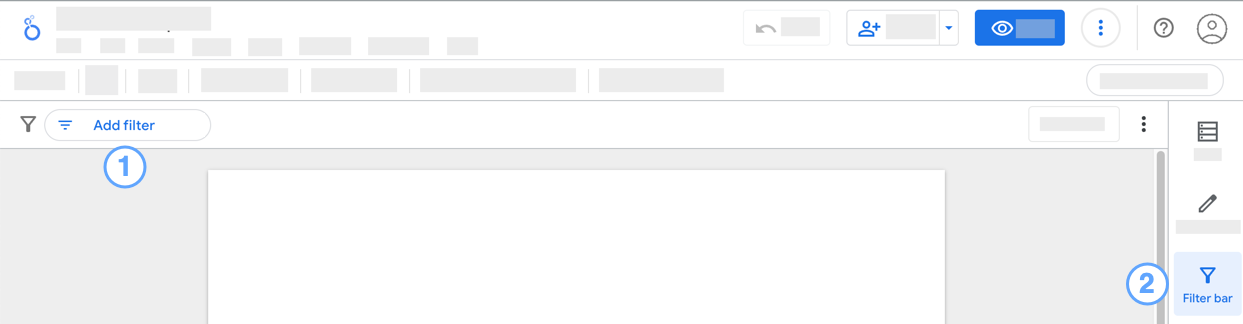
To turn off the filter bar in edit mode, click  Filter bar in the panel.
Add a quick filter to your report
To add a quick filter to your report, whether as an editor or a viewer, click Add filter in the filter bar, and then select a dimension from the field list. If your report contains multiple data sources, you may need to expand the fields for that data source first.
Alternatively, editors can right-click a dimension in the data panel and select Add to filter bar from the context menu.
Quick filters appear as a chip in the filter bar, with a  filter icon preceding the name of the field that you selected.
To configure the quick filter, click the chip, and then do the following:
- For numeric dimensions, use the slider control to refine the range of values.
- For date dimensions, select a date range using the date picker.
- For text, geo, and other dimension types, select a value or values from the list.
Edit a quick filter
To modify a quick filter, whether as an editor or a viewer, click its chip in the filter bar, and then select a new value to filter by.
Remove a filter
Removing a filter control or chart cross-filter from the filter bar resets that individual control or cross-filter.
To remove an individual quick filter, whether as an editor or a viewer, click the X in the quick filter chip.
Clear the filter bar
Clearing the filter bar removes filters from the filter bar. The result of clearing the filter bar depends on whether you are a report editor or viewer:
- Editors: Clearing the filter bar deletes all quick filters and resets any filter controls or chart cross-filters.
- Viewers: Clearing the filter bar deletes any quick filters that you have added. Filter controls and chart cross-filters will remain.
To clear the filter bar, click  , and then select Clear filters
  .
.
Reset the filter bar
Resetting the filter bar removes any values from existing quick filters, but leaves the filter chip in the filter bar. Resetting the filter bar also resets any filter controls or chart cross-filters on the report.
To reset the filter bar, whether as an editor or a viewer, click Reset in the filter bar.
Note: The report-level Reset button will also reset the filter bar, filter controls, and chart cross-filters, but will also reset other report refinements, such as sorting, optional metrics, drill down, and so on.
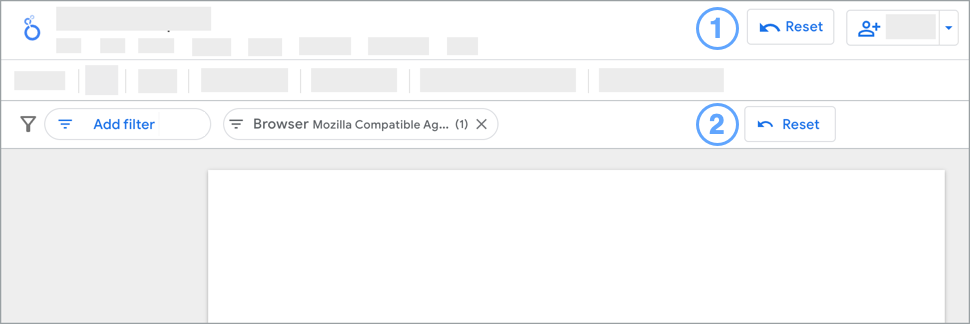
Legend:
- Report-level reset button.
- Filter bar reset button.
Enable and configure the filter bar for viewers
Report editors can enable and configure the filter bar for viewers by following these steps:
- If you aren't in edit mode, click Edit to edit your report.
- In the toolbar, click Add a control, and then select Viewer filter bar.
- The Viewer filter pane opens.
- Toggle Enable viewer filter bar on.
- By default, viewers can use the filter bar to filter by any dimension from any data source in the report. To limit the dimensions that viewers can filter on, select Choose data sources and fields in the Allowed viewer filter dimensions section, and then select the data sources and dimensions that you want to be available to viewers.
Limits of quick filters and the filter bar
- You can only create quick filters on dimensions. Creating quick filters based on metrics is not supported.
- Report editors can specify the dimensions that are available for viewers to use in ad hoc quick filters. By default, most dimensions are enabled.
- With Looker connector data sources, viewers can add ad hoc filters using filter-only fields or parameters.
- The filter bar doesn't show the effects of filter properties, date range controls, or data controls on the report.
- Quick filters apply to the entire page. You can't apply a quick filter to a single component or group of components.
- Viewers can reorder quick filter chips in the filter bar by right-clicking a filter chip and selecting Shift left or Shift right.